
Apple USB-C Digital AV Multiport Adapter
4.5Editor score
HDMI, USB-A, and charging
Video and audio output
Native Apple device support
This HDMI Cord Adapters for Mac guide compares ten USB-C, Mini DisplayPort, and multiport adapters for resolution, charging, audio, portability, and Mac use.
Connecting a Mac to a larger display is simple only when the right adapter matches the computer’s port, display capabilities, and intended use. HDMI cord adapters for Mac range from basic USB-C converters to multiport hubs with charging, USB-A data, and support for portable monitors or projectors.
The products in this guide were compared using their stated specifications, Mac compatibility, video resolution, charging capabilities, audio support, portability, and practical feature sets. The list includes dedicated adapters, complete USB-C-to-HDMI cables, and a Mini DisplayPort option for compatible Mac systems.
The first three selections represent the strongest all-around option, the most premium multiport design, and the best budget choice. Later reviews explain the key benefits and limitations of every product, while current pricing, availability, and Mac support can change over time.
4.5Editor score

4.6Editor score

4.5Editor score
This side-by-side comparison highlights each adapter’s connection type, stated resolution, charging support, and most useful feature for Mac owners.




The Anker USB C to HDMI Adapter is a focused converter for Mac owners who want to connect a USB-C computer to an HDMI television, monitor, or projector. Its 4.6 rating reflects a strong balance of simple operation, useful compatibility, and durable construction, making it the most well-rounded selection in this guide.
We may earn a commission when you buy through this link, at no additional cost to you.
The adapter supports video at up to 4K resolution and works with USB-C devices supporting DisplayPort Alternate Mode, USB4, and Thunderbolt connections. Its plug-and-play design requires no installation, while the aluminum casing helps dissipate heat and the reinforced braided-nylon cable is intended to withstand repeated bending and pulling.
Its main limitation is that it does not support charging or Power Delivery. MacBook owners must therefore use a separate charger or another power connection while the adapter is in use. A separate HDMI cable is also needed to reach the display, but keeping those functions separate can produce a cleaner and more flexible desk setup.
This is the strongest general recommendation for someone who primarily needs dependable display output without several extra ports. It suits newer MacBook Air, MacBook Pro, and other USB-C or Thunderbolt systems that support video, and its restrained design should integrate easily with a monitor, television, or presentation equipment.
The adapter’s support for up to 4K resolution makes it useful for high-resolution monitors as well as living-room televisions. It converts a compatible USB-C video signal for an HDMI display without requiring software, drivers, or manual configuration.
The aluminum housing and reinforced braided cable make the adapter suited to travel and frequent plugging. Its dedicated design avoids the bulk of a multiport hub when the only required function is HDMI output.
We may earn a commission when you buy through this link, at no additional cost to you.
Apple’s USB-C Digital AV Multiport Adapter is the premium choice for users who want a single accessory to handle display output, a standard USB device, and charging. It carries a 4.5 rating and provides the most Apple-focused feature set among the products reviewed, including support for both video and audio.
We may earn a commission when you buy through this link, at no additional cost to you.
The adapter connects to a USB-C or Thunderbolt 3 port on a compatible Mac or selected iPad. Its HDMI output can mirror a Mac display to a television or projector, while the USB-A port accommodates a flash drive, camera, or iOS device cable. The USB-C power port allows a charging cable to remain connected to the computer.
Users must provide their own HDMI cable because it is not included. The listed system requirements also call for macOS Mojave 10.14.6 or later, or iOS 12.4 or later. These conditions are reasonable for most modern Apple devices, but older systems may need a different solution.
This adapter is best for Mac users who value an integrated Apple-oriented design and routinely connect a keyboard, drive, storage device, or iPhone alongside an external display. It is particularly appealing when avoiding multiple separate dongles matters more than having the smallest possible adapter.
HDMI, USB-A, and USB-C charging are combined in a single Apple-oriented hub. That arrangement can reduce desk clutter while preserving access to peripherals and a dependable power connection.
The HDMI output supports both video and audio, so compatible presentations, videos, and media can be carried to an external display. The separate USB-A port remains available for accessories that need a data connection.
We may earn a commission when you buy through this link, at no additional cost to you.
The Highwings USB C to HDMI Adapter delivers a compelling combination of resolution, construction, and straightforward operation. Its 4.5 rating and stated 4K at 60Hz capability make it a practical budget-oriented choice for home offices, classrooms, and travel setups.
We may earn a commission when you buy through this link, at no additional cost to you.
The adapter uses a USB-C male connector and an HDMI female port, allowing owners to reuse an HDMI cable already connected to a display. It supports older HDMI 1.4, 1.3, and 1.2 screens and is designed for compatible USB-C devices with DisplayPort Alternate Mode. Video and audio move from the USB-C source to the HDMI display.
This is a one-way converter, so it cannot accept an HDMI signal and send it back through USB-C. It also does not provide charging. Highwings recommends a High Speed HDMI cable within 15 feet for stable 4K output and notes that the internal chip can become warm during high-resolution transmission, which is normal.
For a Mac user who only needs a dependable USB-C-to-HDMI connection and already owns a suitable HDMI cable, this adapter delivers the essential features without unnecessary hub functions. Confirm that the Mac’s USB-C port supports DisplayPort Alternate Mode before choosing it.
Support for 4K at 60Hz makes the adapter suitable for modern high-resolution monitors and compatible televisions. The stated backward support for several HDMI standards also broadens its usefulness across existing display setups.
The HDMI female end accepts the cable already found in most home-office setups. This makes the adapter especially convenient for moving between a desk, conference room, or presentation location.
We may earn a commission when you buy through this link, at no additional cost to you.
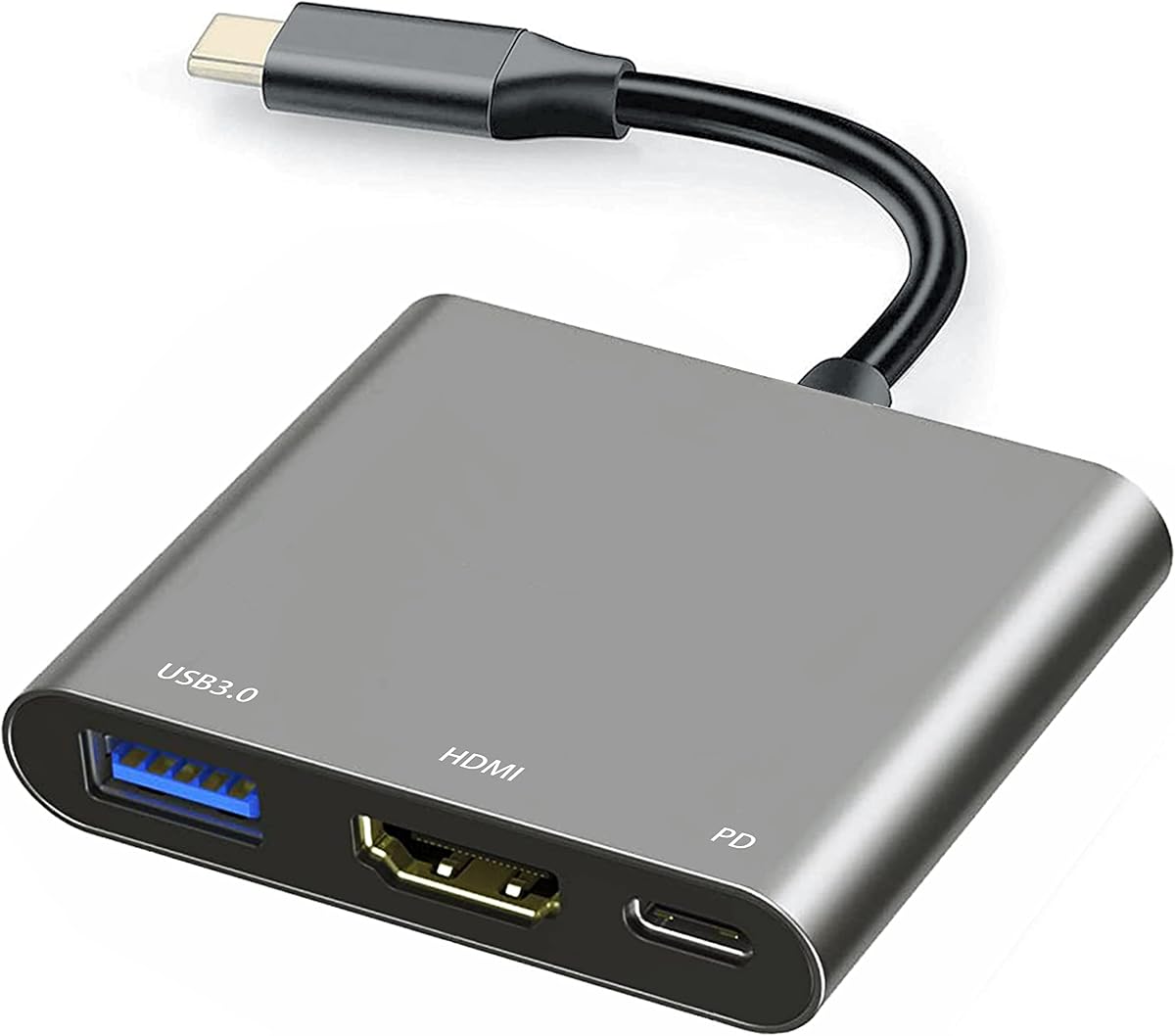
The Battony USB C to HDTV Adapter is a multiport converter for users who need more than basic screen mirroring. With a 4.3 rating, it combines HDMI output, USB-A connectivity, data transfer, and a charging connection in a portable aluminum-bodied design.
We may earn a commission when you buy through this link, at no additional cost to you.
Video output is stated at up to 4K UHD at 30Hz, making it better suited to general media, presentations, and productivity than high-refresh 4K gaming. The USB 3.1 hub is advertised at speeds up to 5Gbps and can be used with flash drives, cameras, removable hard drives, mice, keyboards, and other USB-A devices.
The product requires an HDTV 2.0 or better cable for the stated 4K performance. Its three-in-one layout may also occupy more space than a dedicated video adapter, although the aluminum construction and portable form offset some of that bulk. Actual video output remains dependent on the source device and display.
This adapter is most appropriate for MacBook owners who regularly attach storage, input devices, or other USB accessories while presenting. The listed compatibility includes multiple MacBook and MacBook Pro generations, making it worth checking against the exact model and port type before purchase.
The USB-A connections let a Mac remain connected to a keyboard, mouse, drive, or camera while video is sent to a larger screen. This makes the adapter useful for temporary workstations and presentation tables.
The slim aluminum body is intended to improve heat dissipation while remaining easy to carry. A plug-and-play design eliminates the need to install drivers or manage complicated setup software.
We may earn a commission when you buy through this link, at no additional cost to you.
The Warrky USB C to HDMI Cable is an all-in-one solution for Mac users who prefer a direct cable over a short adapter and separate HDMI lead. It has a 4.5 rating, a six-foot length, and a stated 4K at 60Hz specification.
We may earn a commission when you buy through this link, at no additional cost to you.
The cable is designed for USB-C devices with DisplayPort Alternate Mode and Thunderbolt 3 or 4. Its listed resolution support includes 4K at 60Hz, 1440p at 144Hz, and 1080p at 240Hz. It can mirror or extend content from compatible Macs, tablets, phones, and other systems to monitors, televisions, and projectors.
Because the cable has a fixed length, it is less flexible than a compact adapter paired with a longer HDMI cable. It also does not add a charging path, so a MacBook still needs its normal power arrangement. The benefit is fewer pieces to carry and no chance of leaving a small adapter behind.
This is a strong choice for a dedicated desk, hotel room, classroom, or presentation kit where a six-foot run is appropriate. Buyers should confirm that the source device supports video output and avoid expecting USB-C charging or reverse HDMI-to-USB-C conversion.
A direct USB-C-to-HDMI cable removes the need to pack a dongle and a separate HDMI lead. It is a straightforward solution for travelers who want the connection ready to use at the destination.
The stated resolution combinations extend beyond basic 4K output, making the cable suitable for compatible high-refresh monitors. Real results depend on the Mac, display, operating system, and application.
We may earn a commission when you buy through this link, at no additional cost to you.
The USB C to HDMI Multiport Adapter is a compact hub for Mac users who need video, charging, and USB-A accessories through one connection. Its 4.2 rating reflects a broad but relatively simple feature set designed for everyday productivity and travel.
We may earn a commission when you buy through this link, at no additional cost to you.
Its HDMI output follows the HDMI 2.1 standard and supports 4K, 2K, 1080p, and 720p resolutions. The USB-C charging port has a stated maximum Power Delivery output of 27W. Two USB-A ports support data transfer, OTG, and accessories such as a keyboard, mouse, flash drive, card reader, or mobile hard disk.
The gray aluminum housing measures approximately 2.3 by 2.1 by 0.4 inches, with a short attached cable. It is portable, but a user carrying several accessories may find the larger body less convenient than a dedicated adapter. The stated 27W charging maximum is also below the power offered by some higher-wattage laptop hubs.
This product suits owners of compatible USB-C Macs who want one small hub for a monitor and occasional peripherals. It is especially practical for Chromebooks and tablets that support the required USB-C video mode, though Mac users should verify the exact port and charging behavior.
HDMI, charging, and two USB-A connections cover the common needs of a temporary desktop. It can eliminate separate adapters when a keyboard, mouse, or storage device must remain attached to the Mac.
The compact aluminum shell and short cable are designed for easy packing. Users can carry a single functional hub rather than several separate dongles for display, charging, and data.
We may earn a commission when you buy through this link, at no additional cost to you.
The Acer USB C to HDMI Adapter is built around high-power charging, making it a strong fit for power-hungry MacBook Pro workflows. It has a 4.4 rating and combines an HDMI output, a USB-A 3.0 port, and a USB-C Power Delivery input in one compact hub.
We may earn a commission when you buy through this link, at no additional cost to you.
The charging port is stated to support up to 100W when paired with compatible charging equipment. Its HDMI output supports 4K at 30Hz, and the USB-A port provides data transfer at up to 5Gbps. The product uses an aluminum housing and requires no additional drivers for plug-and-play operation.
There are two important limitations. First, the video mode is 4K at 30Hz rather than 60Hz. Second, the product is explicitly listed as incompatible with portable monitors and does not provide an HDMI female port. Charging speed also varies with the Mac, charger, and cable used.
This adapter is best for a desk where maintaining high charging power matters more than high-refresh 4K. It supports MacBook Pro and Air models and is compatible with macOS 10.5 or later, subject to the USB-C port supporting DisplayPort Alternate Mode.
The stated 100W maximum makes this one of the most capable charging options in the guide. It is especially relevant to MacBook Pro users who run intensive workloads and want to keep a single USB-C connection active.
The USB-A port adds a practical data connection for a keyboard, mouse, drive, or other peripheral. Its combination of charging, display, and data helps create a more permanent workstation from one accessory.
We may earn a commission when you buy through this link, at no additional cost to you.
The Kinhaly USB C to HDMI Adapter is a two-port adapter designed for viewing media or presentations on a television or projector while maintaining a charging connection. Its 4.2 rating and 4K at 60Hz specification make it an interesting option for compatible modern devices.
We may earn a commission when you buy through this link, at no additional cost to you.
Video and charging are handled through a compact aluminum housing and short braided cable. The stated device list includes current and recent iPhone models, MacBook Pro and Air models, iPad Pro models, iMac models, and numerous Samsung Galaxy devices. A Trust prompt may appear when connecting certain Apple devices, but the product does not require a separate app or driver.
The adapter’s main limitation concerns content protection. The supplied information states that protected applications such as Netflix, Prime Video, Amazon Video, HBO Go, and Hulu may not work, even though other video applications and downloaded content are supported. This is important for anyone planning to use the adapter primarily for commercial streaming.
For Mac users sharing presentations, photos, videos, or locally stored media, the adapter can be useful, especially when charging is needed during a long session. Users of protected streaming services should not rely on it without verifying current app behavior.
The separate charging path allows a compatible device to remain powered while its display output is sent to a television or projector. That is useful for extended media viewing and presentations.
The listed compatibility covers several recent Mac, iPhone, iPad, and Galaxy models. Checking the source device for DisplayPort Alternate Mode remains essential because not every USB-C port provides video output.
We may earn a commission when you buy through this link, at no additional cost to you.
The BENFEI USB C to HDMI Adapter is a compact dedicated converter with a 4.4 rating. It is aimed at users who need high-resolution display output from a modern USB-C Mac and do not need a hub, charging function, or USB-A data connection.
We may earn a commission when you buy through this link, at no additional cost to you.
The adapter supports resolutions up to 4K at 60Hz, along with 4K at 30Hz, 2K at 144Hz, 1080p, 720p, and several legacy computer resolutions. Its stated compatibility includes Thunderbolt 3, 4, and 5, current MacBook Pro and Air models, iMac, iPad Pro, and a wide selection of other USB-C devices.
The advanced internal chip handles signal conversion, while the plated USB-C connector and molded strain relief are designed to support stable transmission and durability. However, the product provides no charging path, so MacBook owners must preserve their normal power solution and carry a separate HDMI cable.
This adapter is a good fit for presentations, travel, and secondary monitors where simple video conversion is enough. It is less appropriate for a permanent desk that needs USB-A peripherals, high-wattage charging, or a multiport workspace.
The built-in chip and stated 4K at 60Hz capability make the adapter suitable for high-resolution displays. Its broad list of supported refresh rates also provides flexibility when connecting to different monitors.
The small dedicated body is easier to carry than a multiport hub. It can remain in a laptop sleeve or presentation case and be deployed only when an HDMI display is available.
We may earn a commission when you buy through this link, at no additional cost to you.
The BENFEI Mini DisplayPort to HDMI Adapter is the essential choice for older Mac hardware that uses Mini DisplayPort rather than USB-C. Its 4.6 rating, sturdy construction, and stated 4K capability make it a specialized but highly relevant option for compatible legacy systems.
We may earn a commission when you buy through this link, at no additional cost to you.
The adapter uses a Mini DisplayPort source and an HDMI display output, supporting resolutions up to 3840 by 2160 at 30Hz. It also lists 1920 by 1200 and 1080p output, along with audio pass-through for uncompressed 7.1, 5.1, or 2-channel digital audio. Professional shielding and gold-plated pure copper connectors support signal stability.
This product cannot be used with a standard USB-C port, USB adapter, Thunderbolt 3 port, DisplayPort port, or Lightning port. Its 4K mode also does not support 60Hz. Buyers should identify the exact connector on the Mac before ordering; older MacBook Air, MacBook Pro, iMac, Mac mini, and Mac Pro models are listed as compatible.
It is the right recommendation for someone maintaining or resuscitating an older Mac that still has Mini DisplayPort. The compact aluminum unibody shell and stated bend lifespan make it suitable for a permanent desk adapter or a portable technician’s kit.
The adapter gives Mini DisplayPort hardware access to modern HDMI displays without requiring a full dock. It is particularly valuable for older MacBook Air and MacBook Pro systems that lack USB-C.
Multiple shielding, gold-plated copper contacts, and stated support for multi-channel audio pass-through help maintain a dependable audiovisual connection. The unibody aluminum shell also provides a rigid, portable enclosure.
We may earn a commission when you buy through this link, at no additional cost to you.
The right Mac HDMI adapter depends on the computer’s physical ports, the display and resolution you want, and whether you also need charging or peripheral connections. These factors separate a simple converter from a more versatile desk hub.
Most current MacBook Air and MacBook Pro models use USB-C, but that does not automatically mean every USB-C port can send video. Look for DisplayPort Alternate Mode or Thunderbolt support in the system specifications. Older Macs may use Mini DisplayPort, which requires a completely different adapter. A USB-C product is not interchangeable with a Mini DisplayPort adapter even when both perform HDMI conversion.
A stated 4K resolution does not reveal the full performance picture because refresh rate matters as well. Options range from 4K at 30Hz to 4K at 60Hz, and some products list high-refresh lower resolutions. Consider the native resolution, refresh rate, and HDR requirements of the monitor or television. The source computer, operating system, display, cable, and adapter must all support the desired combination.
If the adapter will carry movies, presentations, or other media, confirm that it supports audio alongside video. HDMI can carry both signals, but product descriptions are not always equally clear about the supported channels. Apple’s multiport adapter and the Mini DisplayPort BENFEI explicitly mention audio, while other dedicated converters focus primarily on display output. The connected display must also be able to play the audio.
A dedicated USB-C-to-HDMI adapter may leave the MacBook’s charging port free for a separate charger, which can be convenient. A multiport hub may provide a dedicated USB-C charging input alongside HDMI and USB-A ports. Charging power varies considerably, so compare the wattage and note that the charger and charging cable also affect results. A USB-C video port is not automatically a charging port.
A USB-A port can be valuable for a keyboard, mouse, flash drive, card reader, or other accessory, but it is unnecessary for a simple second-screen setup. Multiport adapters add size and can create a cluster of connected leads. If the Mac already uses a full-size hub or docking station at the desk, a lightweight dedicated converter may be more portable and less redundant.
An integrated USB-C-to-HDMI cable is the simplest option to carry because there is no separate adapter to lose. A short USB-C-to-HDMI adapter can use an existing HDMI cable of any suitable length, making it more flexible for permanent desks. A fixed-length cable may be less convenient when the display and Mac are far apart. Consider the direction of the ports, connector housing size, and the amount of desk space available.
Several streaming services protect content with technologies that can prevent some adapters from mirroring protected applications. Product documentation may explicitly list unsupported services such as Netflix, Prime Video, Amazon Video, HBO Go, or Hulu. This limitation does not necessarily affect presentations, general desktop use, or locally stored media, but it is essential for anyone whose primary goal is commercial streaming.
Frequent travel favors a compact adapter with a short, reinforced cable, while a permanent office setup may favor aluminum construction, strain relief, or a dock-style layout. Braided jackets and molded connectors can improve durability, while aluminum housings assist with heat dissipation. None of these features guarantees compatibility, so port type and display requirements should remain the first checks.
Before connecting the adapter, identify the port on the Mac, confirm that it supports video output, and inspect both the Mac connector and adapter for dirt or damage. For a USB-C adapter, connect the USB-C end directly to the Mac first, then attach an appropriate HDMI cable between the adapter and the television, monitor, or projector.
Power the display and select the correct HDMI input. On many recent Mac models, macOS recognizes the external display automatically, while older systems may require Detect Display or a display-arrangement setting in System Preferences. Adjust scaling, resolution, and refresh rate through the Mac’s Displays settings, and use the display’s controls for audio if the Mac recognizes the screen as an extended desktop rather than a mirrored one.
For hubs with charging and USB-A ports, connect the charger to the dedicated USB-C power input and attach peripherals to the available data ports. Avoid sharply bending the cable near its connector, keep the adapter uncovered while operating, and do not insert or remove it while the display is hot or actively transferring data. When troubleshooting, test the display with another cable, confirm the selected input, and verify that the Mac and application support the intended resolution.
No. The USB-C port must support DisplayPort Alternate Mode or a compatible Thunderbolt connection. A charging-only USB-C port cannot transmit video. Check the specifications for the exact Mac model and port before purchasing an adapter.
It depends on the design. Dedicated converters such as the Anker and Highwings products do not support charging. Multiport hubs may include a separate USB-C power input, with maximum charging levels varying by model. Always distinguish the video port from the charging port.
They use the same physical connector, but their capabilities are not identical. A Thunderbolt connection generally provides more bandwidth, while video output still depends on DisplayPort Alternate Mode support. Check both the Mac port and the adapter’s compatibility list.
Choose 4K at 60Hz for a modern high-resolution monitor when the Mac, adapter, display, and cable all support it. 4K at 30Hz is adequate for many office tasks and presentations. Higher-refresh lower-resolution modes may be useful for gaming or fast-motion content.
Not directly. The Mini DisplayPort adapter requires a Mini DisplayPort source and cannot be used with USB-C, Thunderbolt 3, a full DisplayPort port, or Lightning. A USB-C Mac needs a USB-C-to-HDMI adapter instead.
Some products support both video and audio, while others list only video. If sound is required, look for explicit audio support and make sure the display has speakers or an audio output. The Mac must also be configured to send audio to the HDMI display.
That depends on the adapter and the service’s content-protection requirements. Some products work with standard video apps but explicitly exclude protected services such as Netflix or Prime Video. Check the adapter’s compatibility notes before relying on it for subscription streaming.
Most dedicated USB-C-to-HDMI adapters require a separate HDMI cable because the adapter only converts the Mac’s USB-C video signal. Products described as USB-C-to-HDMI cables include the connection in one piece. Check the package description before ordering so you know whether another cable is needed.
The Anker USB C to HDMI Adapter is the strongest overall choice because it combines up to 4K output, broad modern Mac compatibility, plug-and-play use, and durable construction in a focused design. Apple’s USB-C Digital AV Multiport Adapter is the premium option for users who want HDMI, USB-A, charging, and display audio in one Apple-oriented accessory, while the Highwings adapter delivers strong 4K at 60Hz support at a budget-friendly level.
For most buyers, the right priorities are the connector on the exact Mac, the desired resolution and refresh rate, and whether a separate charging path is needed. Those with more demanding desks should consider the Acer hub for its stated high charging capacity, the Battony model for USB 3.0 data support, and the Warrky cable for a complete one-piece connection.
Older Mini DisplayPort Macs have a different path, making the BENFEI Mini DisplayPort adapter the relevant dedicated option. Before buying, confirm the source port, display capabilities, cable requirements, and any protected-app limitations. Current pricing and product availability can change, so compare the latest listing details when making a final decision.