
Amazon Basics Stereo 2.0 Speakers
4.4Editor score
Simple 3.5mm aux connection
USB-powered stereo system
Inline volume control
Compact two-speaker design
MacBook external speakers setup guide comparing 10 models for USB-C, Bluetooth, sound quality, compact design, calls, and effortless Mac integration.
A MacBook can produce enjoyable sound for everyday work, yet its built-in speakers may not deliver the volume, bass, stereo separation, or voice clarity desired for music, movies, meetings, and focused creative work. The right external setup can transform your desk while keeping charging, display, and input cables organized.
We compared these 10 computer speaker systems by examining their Mac connectivity, wired and wireless options, channel separation, bass response, controls, mounting design, compatibility, and suitability for work or entertainment. The guide covers USB audio, USB-C power, Bluetooth models, compact monitor-mounted systems, and a conference-oriented speakerphone.
Each selection highlights a different practical advantage, from space-saving clamps to multi-device Bluetooth and detailed app-based sound control. Product ratings reflect the supplied marketplace feedback, while feature and design trade-offs provide additional context. Availability and pricing can change, so confirm current specifications before purchasing.
4.4Editor score

4.4Editor score
4.5Editor score
This side-by-side comparison organizes all 10 systems by their strongest qualities, including connection style, output, mounting approach, and intended use.



The Creative Pebble V3 combines a clean two-speaker design with one of the most useful MacBook connections in this guide. It has a 4.4 marketplace rating and supports USB-C digital audio, Bluetooth 5.0, and a 3.5mm AUX input. Its relatively compact footprint and angled drivers make it a strong all-around desktop system.
We may earn a commission when you buy through this link, at no additional cost to you.
The supplied USB-C cable handles both audio and power on compatible modern MacBook models, reducing desk clutter without requiring a separate headphone-jack connection. A USB-C-to-USB-A converter is included for older computers. The built-in gain switch can request more power from a suitable 10W USB port, while the larger 2.25-inch full-range drivers provide stronger output than many similarly compact systems.
Creative's Clear Dialog processing is a meaningful addition for podcasts, video calls, movies, and instructional content. It is designed to improve spoken dialogue without simply forcing overall volume upward. The 45-degree elevated driver orientation directs sound toward the listener, and the longer inter-speaker cable provides more flexibility in placement. Bluetooth and AUX add welcome versatility when the MacBook is not the active source.
This is the most balanced recommendation for someone who wants a Mac-friendly setup without a complicated installation. It is particularly appealing for students, office workers, and casual listeners who value one-cable operation, speech clarity, and wireless flexibility. The main limitations are its modest physical scale and the absence of an included AUX cable, but neither prevents it from serving as a polished daily speaker system.
USB-C audio and power arrive through the included cable, so a modern MacBook can begin playing sound with minimal desk clutter. The included converter broadens compatibility with USB-A computers.
Clear Dialog processing targets spoken content, making it useful for videos, meetings, lectures, and podcasts where intelligibility matters more than cinematic effects.
We may earn a commission when you buy through this link, at no additional cost to you.
The Amazon Basics Stereo 2.0 pair is a practical choice for buyers who value uncomplicated setup and genuine left-right speaker placement. It carries a 4.4 rating and includes two compact speakers, a wired 3.5mm audio connection, USB power, and an inline volume control. It is a less advanced system, yet its uncomplicated design works well for basic MacBook listening.
We may earn a commission when you buy through this link, at no additional cost to you.
The analog audio path is familiar and dependable. A MacBook with a headphone jack can connect directly, while newer USB-C-only machines generally need an appropriate adapter, depending on the adapter's support for audio output. The USB lead powers the speakers without occupying another wall outlet, and the inline control lets the listener adjust volume without changing system preferences.
The bottom radiator is intended to add bass response despite the small cabinets. Blue status lights provide a simple visual indication, while the metal finish and padded bases give the set a more refined appearance than a basic all-plastic pair. The design does not offer Bluetooth, USB digital audio, app control, or spoken-dialogue processing, so buyers should not expect those conveniences.
This set is best for straightforward listening, online classes, video calls, and background music on a modest desk. It makes more sense for someone who wants a conventional two-speaker arrangement without learning a new control scheme. Its limitations are predictable rather than serious: it requires a wired audio path, and newer MacBooks may need a compatible adapter.
Separate left and right speakers create a conventional stereo image that is easy to position on either side of a MacBook display. This layout can make music and video feel noticeably more open than a single compact soundbar.
The inline volume control provides quick access to the most common adjustment without requiring the macOS menu bar. USB power keeps the system tidy, although the audio cable remains necessary.
We may earn a commission when you buy through this link, at no additional cost to you.
The Logitech Z207 is a two-speaker system that combines a 3.5mm connection with Bluetooth 4.2. Its 4.4 rating reflects a well-regarded combination of simple operation, flexible source switching, and a useful headphone output. For a MacBook user who moves between the computer and a phone, that flexibility is more important than an advanced app.
We may earn a commission when you buy through this link, at no additional cost to you.
Logitech Easy-Switch technology allows the user to pause playback on one source and play on another to move the active connection. Each speaker contains an active, powered full-range driver and a passive radiator for bass extension. Power, pairing, and volume controls are located on the speaker, reducing the need to navigate macOS settings for routine changes.
The on-speaker headphone jack can be convenient for private listening without unplugging the entire system. The 3.5mm option supports MacBooks with a traditional headphone socket, although a compatible adapter may be needed on newer models. Bluetooth 4.2 is serviceable for basic audio, but it is not the newest wireless standard represented in this guide.
The Z207 is best for a mixed-device desk or a user who wants wireless music with the option to return to wired computer audio. It is less suitable for buyers who prioritize USB-C digital audio, very current Bluetooth specifications, or fine-grained app-based equalization. Even so, it remains a versatile and approachable two-speaker option.
Easy-Switch is designed for moving between a paired phone and a wired source with minimal interruption. That convenience makes the system well suited to desks where more than one device supplies music or media.
A headphone jack on one speaker provides a convenient way to switch to personal listening. The computer stays connected to the speakers while the user uses headphones.
We may earn a commission when you buy through this link, at no additional cost to you.
The Edifier M60 is the most ambitious premium system in this roundup, with 66W total RMS output, Hi-Res Audio certification, and extensive connection options. Its 4.5 rating reflects a strong combination of power, refinement, and flexibility. It is aimed at users who want the MacBook to serve as the center of a serious entertainment or creative desktop.
We may earn a commission when you buy through this link, at no additional cost to you.
Each speaker combines a 3-inch long-throw aluminum diaphragm mid-low driver with a 1-inch silk-dome tweeter. A high-efficiency closed-loop Class-D amplifier, two-way active crossover, and dynamic-range control provide detailed signal handling. Bluetooth 5.3 supports LDAC for high-resolution streaming from compatible Android devices, while USB-C and AUX inputs cover wired listening.
The cap-sensitive control panel wakes as a hand approaches and then turns its backlight off again. The EDIFIER ConneX app extends control, and bundled aluminum stands position the speakers at a 15-degree angle to direct sound toward ear level. These features make the M60 more engaging, but they also place it above the needs of a user who only wants lightweight background sound.
This is the strongest option for music, movies, detailed editing, and users who value a full-featured desktop system. The additional power and refinement are meaningful benefits rather than decorative specifications. Its footprint and feature set may feel excessive for a small dorm room or a travel-oriented desk, but for a stationary MacBook workstation, the M60 offers a notably more complete presentation.
Bluetooth 5.3 and LDAC support high-quality streaming from compatible devices. USB-C provides a modern wired path for the MacBook, while AUX remains available for analog sources.
Separate mid-low drivers and tweeters, active crossover, and digital signal processing provide a more structured sound than a basic compact stereo pair. The included stands add another layer to the listening position.
We may earn a commission when you buy through this link, at no additional cost to you.
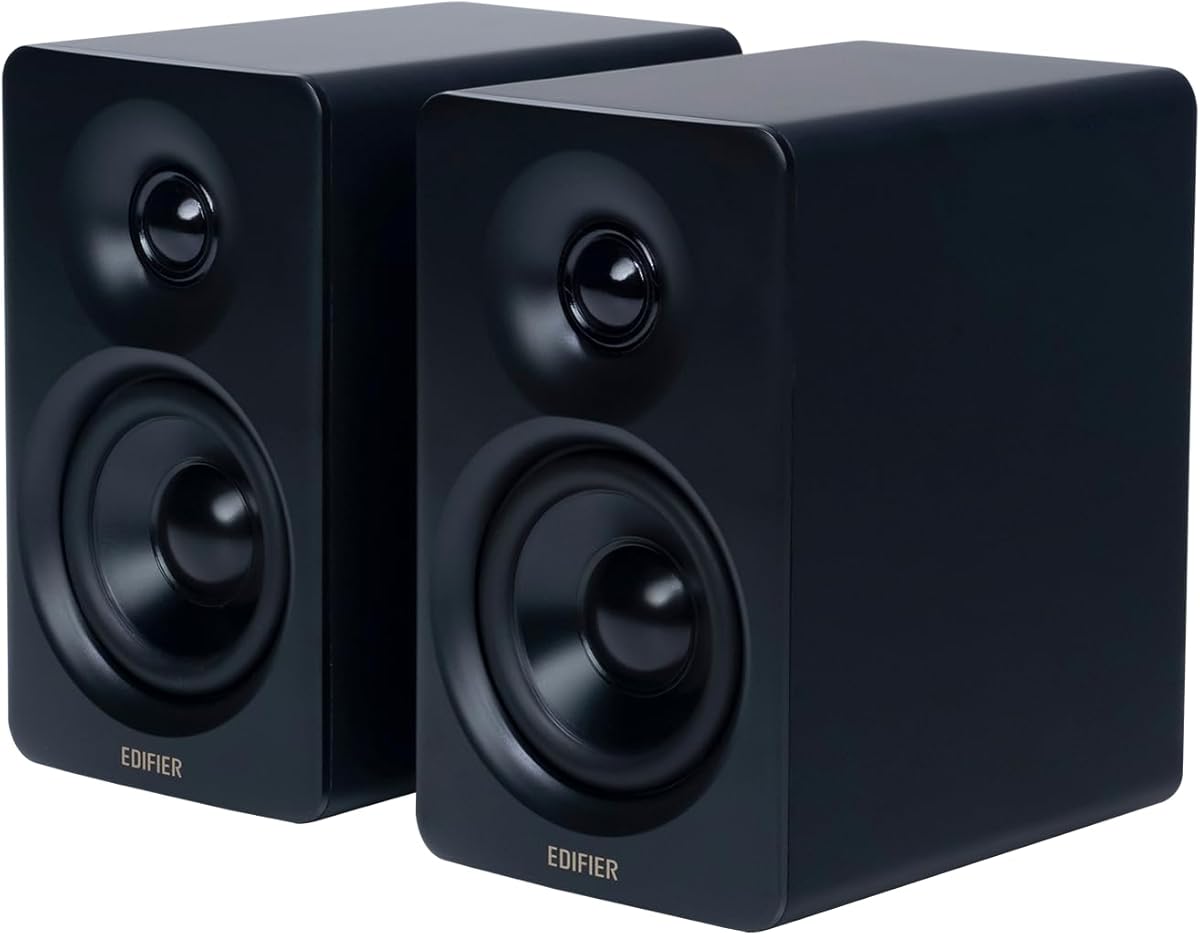
The Edifier MR3 combines a studio-monitor presentation with practical Bluetooth and wired connectivity. Its 4.5 rating and Hi-Res Audio certification position it as a serious listening option for music creation, video editing, guitar practice, and detailed everyday use. The 36W total RMS output gives it more authority than compact desktop sets without reaching the M60's scale.
We may earn a commission when you buy through this link, at no additional cost to you.
Hi-Res Audio certification covers a claimed flat response from 52Hz to 40kHz. Each cabinet pairs a 3.5-inch mid-low driver with a 1-inch tweeter, while the MDF enclosure is intended to reduce unwanted resonance. Music, Monitor, and Custom modes let users adapt the presentation to different sources, and the EDIFIER ConneX app provides deeper equalization and personalization.
Connection options include balanced TRS, RCA, and AUX, along with a headphone output. Bluetooth supports multi-point connection, and the wired inputs can accommodate multiple audio devices simultaneously. This makes the MR3 especially useful for creators who may compare sources or want a permanent connection to a MacBook without giving up access to studio gear.
The MR3 is best for users who value accurate detail, flexible inputs, and a desktop that can double as a production monitor. Casual listeners may find its mode switching and app controls excessive, but they can be ignored. For a MacBook-based editing or music setup, the MR3 offers a particularly persuasive combination of refinement and connectivity.
Music, Monitor, and Custom modes allow the speakers to serve different roles. The app adds detailed EQ adjustment for users who want to shape the output for their room and preferences.
USB-C or another compatible digital adapter can feed audio from a modern MacBook, while TRS, RCA, and AUX inputs support other equipment. A headphone output supports private monitoring.
We may earn a commission when you buy through this link, at no additional cost to you.
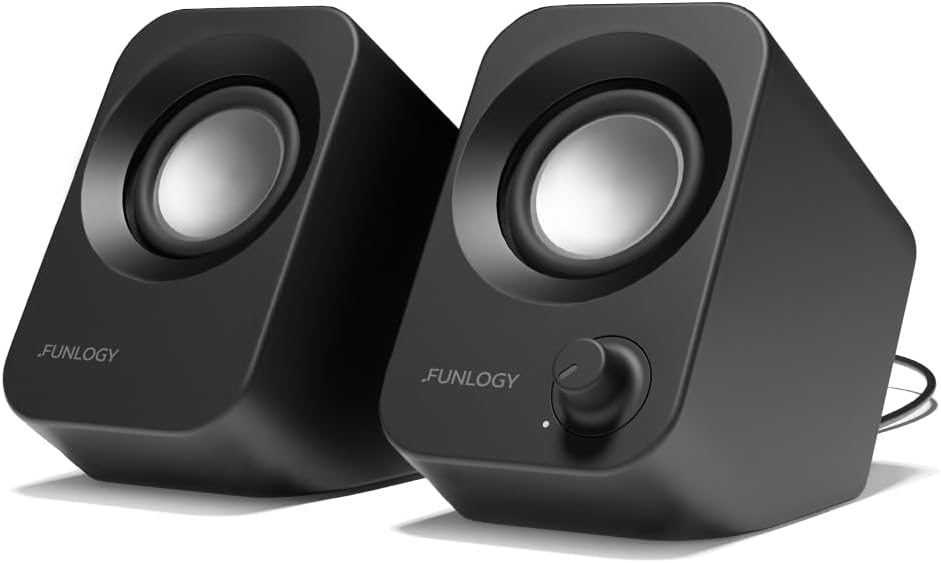
The FUNLOGY 14W system combines two compact speakers with a practical 30-degree upward tilt. Its 4.2 rating reflects a straightforward product aimed at users who want more volume and stereo separation than a MacBook's built-in speakers without dedicating much desk space. A total output of 14W gives it more headroom than the smallest single-bar options.
We may earn a commission when you buy through this link, at no additional cost to you.
Two 48mm full-range drivers and passive radiators handle the sound, while the upward angle directs audio toward a seated listener. The physical volume dial is easy to identify and adjust, making the system more approachable than menu-driven controls. USB supplies power, and the included 3.5mm cable carries the analog audio signal.
The gold-plated AUX input is intended to reduce signal noise, including during computer startup and shutdown. Broad compatibility with desktop PCs, laptops, monitors, smartphones, and gaming consoles makes the speakers versatile. However, a modern MacBook with only USB-C ports will need a compatible audio adapter, and the supplied product data does not indicate Bluetooth support.
This system is best for compact workspaces, dorm rooms, and users who appreciate tactile controls. It provides a more spacious presentation than a single soundbar and does not require a complex configuration. Those seeking USB-C digital audio, wireless streaming, or room-correcting tools should choose a more specialized model instead.
The 30-degree tilt helps the upward-facing drivers reach the ear position of a seated user. This can improve perceived clarity while allowing the speakers to remain low on the desk.
A dedicated volume dial provides immediate, repeatable control. It is a straightforward choice for users who prefer a physical control to software menus or touch buttons.
We may earn a commission when you buy through this link, at no additional cost to you.
The Upgraded USB Computer Speaker is built around simplicity: one USB cable carries both power and audio. It has a 4.2 rating and is compatible with Windows, macOS, ChromeOS, and Linux when the appropriate computer audio driver is installed. That makes it a direct fit for a MacBook desk where minimizing cables is the priority.
We may earn a commission when you buy through this link, at no additional cost to you.
A single soundbar-style enclosure takes up less space than two separate speakers. Dual 3W high-excursion drivers and a passive radiator are designed to provide greater dynamic range, improved bass, and lower distortion than a typical all-in-one laptop speaker. After connecting the USB cable, the user selects the USB audio device in the Mac's sound settings.
There is no Bluetooth, app control, or advanced sound processing, and the single enclosure cannot provide the same spatial separation as a left-right pair. Its appeal lies in being compact, broadly compatible, and largely free of setup friction. The included single-cable approach also avoids an analog adapter on compatible USB-C MacBooks when the proper adapter or cable is used.
This soundbar is best for small workspaces, travel, and users who prioritize a clean desk over stereo width. It also works well for general productivity, online lessons, and background audio. Listeners who regularly enjoy music or movies and want a broad soundstage should favor a paired stereo system or a premium monitor-style set.
USB carries both electrical power and the digital audio signal, removing the need for a separate analog connection. The result is a shorter and cleaner cable path for a MacBook-centered desk.
A passive radiator supports the twin drivers to improve low-frequency response. The design provides more body than a tiny single-driver speaker while retaining a compact footprint.
We may earn a commission when you buy through this link, at no additional cost to you.
The Clip-On USB-C Monitor Speaker is designed for users who would rather keep the desktop surface completely clear. It has a 4.2 rating and can mount above, below, or beside a monitor, although the supplied information specifically notes that it is not intended for TVs or projectors. A built-in USB-C-to-USB adapter supports modern MacBook connections.
We may earn a commission when you buy through this link, at no additional cost to you.
The patented clamp preserves desk space, while a smooth desktop placement option provides flexibility if the monitor is unsuitable for mounting. An adaptive G-sensor system keeps the left and right channels correctly positioned whether the bar is installed at the top or bottom. This is a thoughtful solution to a problem that can otherwise reverse the perceived stereo image.
Dual ultra-magnetic drivers and dual passive radiators provide stereo sound with deeper bass than a basic laptop system. Three front touch controls handle muting and volume. The system uses wired USB audio and does not offer Bluetooth, so its main advantages concern organization and sound rather than source flexibility.
This speaker is best for small MacBook workspaces, shared desks, and setups where monitor mounting is important. Check the monitor edge and mounting clearance before ordering. Those who need wireless audio, a conventional stereo pair, or conferencing features will find a different product more suitable.
Mounting the speaker to a compatible monitor keeps the playback unit off the work surface. That leaves more room for a keyboard, trackpad, notebook, or other desk essentials.
Adaptive channel switching detects the installation orientation and maintains left-right channel placement. It avoids manual channel changes when moving the clamp between the top and bottom of a display.
We may earn a commission when you buy through this link, at no additional cost to you.
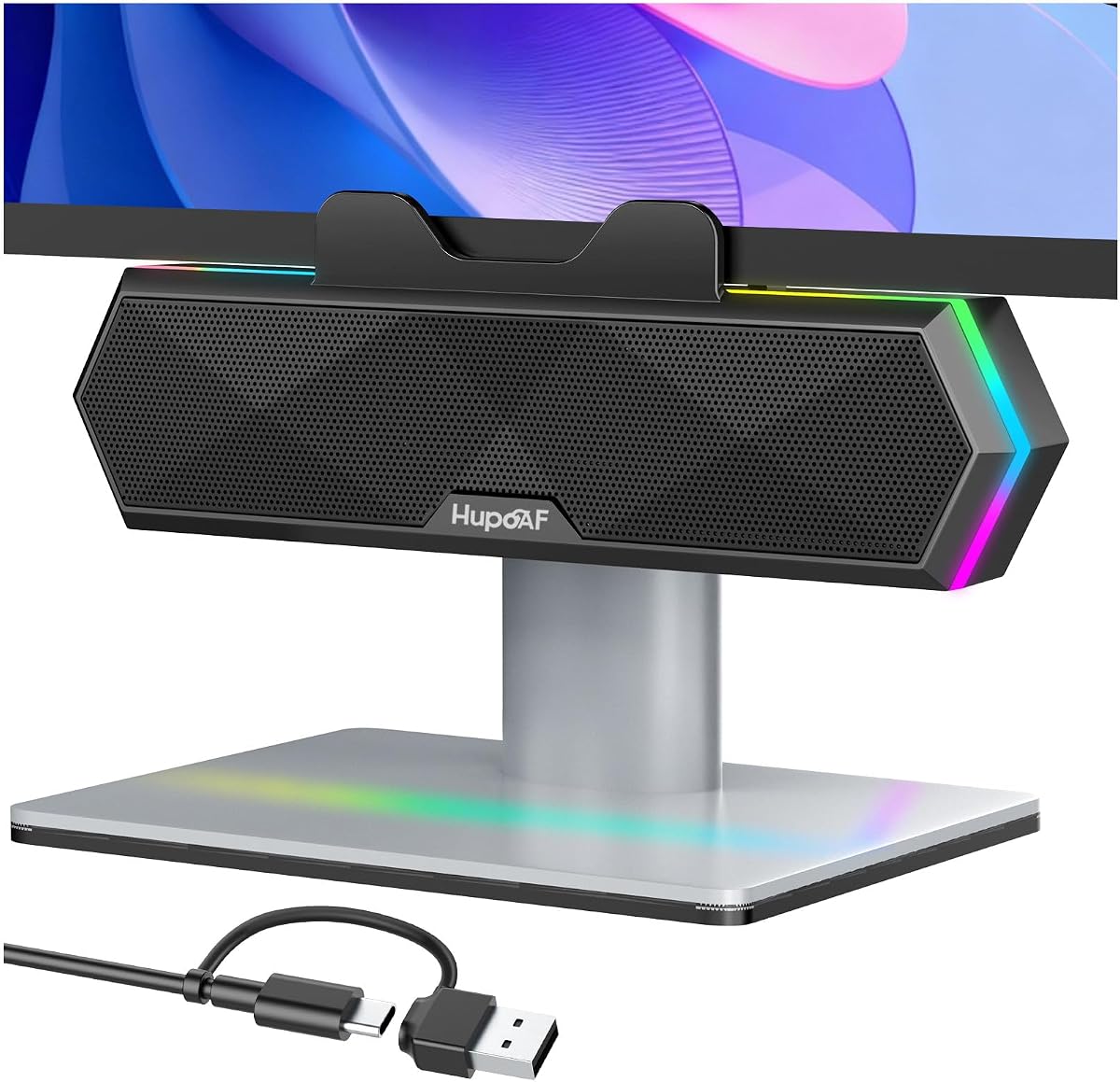
The RGB Clip-On Monitor Speaker combines a space-saving mount, rich compact sound, and adjustable lighting. Its 4.6 rating is the highest listed in this guide, though the design is clearly oriented toward colorful computer setups. It supports Windows, macOS, ChromeOS, and Linux through a single USB connection.
We may earn a commission when you buy through this link, at no additional cost to you.
The upgraded non-slip spring clamp attaches to the top, bottom, or side of a compatible monitor, and freestanding placement is also supported. A single USB cable handles power and audio without software or an external power adapter. Top controls cover volume, mute, playback, and RGB lighting, allowing routine changes without opening the Mac's menus.
Dual ultra-magnetic drivers and passive radiators are intended to deliver clear highs, crisp mids, and resonant bass despite the small enclosure. Six RGB modes can be cycled with a button press, while a longer press turns the lighting off for a distraction-free workspace. These visual controls make the system especially appealing for a gaming or streaming desk.
There are important limits. The speaker is designed for computers and does not support TVs, projectors, Xbox consoles, or PlayStation consoles. The bottom clamp supports a maximum thickness of 1.6 inches, and there is no built-in microphone. For a compatible MacBook and suitably sized display, it is a stylish, practical way to add sound and personality while preserving desk space.
Six selectable RGB modes allow the speaker to coordinate with gaming peripherals or a streaming setup. Turning the lights off restores a more restrained appearance for work and study.
A spring clamp supports several monitor positions and helps avoid surface scratches. Freestanding use provides an alternative when monitor dimensions or stand design prevent mounting.
We may earn a commission when you buy through this link, at no additional cost to you.
The Dell SP3022 is a conference speakerphone rather than a conventional entertainment speaker. It carries a 4.2 rating, Microsoft Teams certification, and Zoom certification. Its compact desk form and USB-A or USB-C connectivity make it easy to pair with a MacBook for hybrid meetings, conference calls, and collaborative work.
We may earn a commission when you buy through this link, at no additional cost to you.
Full-duplex audio allows multiple people to speak during a call, while AI noise cancellation is intended to keep voices intelligible in a shared environment. LED indicators clearly show Microsoft Teams status, call and hang-up functions, volume, and microphone mute state. A dedicated Teams button provides quick access to meetings and notifications.
The device can sit on a monitor base or beside a laptop or desktop, and the setup process is designed to be intuitive. This concentrates on voice communication rather than musical frequency response, wide stereo imaging, or deep bass. It is therefore not the general-purpose choice for watching films or enjoying playlists.
The SP3022 is best for professionals whose MacBook is the center of frequent online meetings. It offers the most specialized feature set in this guide and can be a better investment than an entertainment speaker when microphone pickup, call controls, and platform certification matter most. Those who want one device for both music and calls should consider a more conventional powered speaker system instead.
Full-duplex operation and AI noise cancellation support intelligible group conversations. These features make the speakerphone more relevant to a shared office or home conference setting than a standard music system.
The Microsoft Teams button and clearly labeled LED indicators simplify common call actions. A user can check call state, adjust volume, or mute the microphone without hunting through software.
We may earn a commission when you buy through this link, at no additional cost to you.
The right MacBook speaker system depends on connection compatibility, available desk space, sound expectations, and whether your priority is media playback, focused work, or online meetings.
Begin with the ports available on your specific MacBook. Some systems use a dedicated 3.5mm headphone connection, while others require USB-C digital audio, an appropriate adapter, or a combination of USB power and analog audio. A speaker can be physically excellent yet inconvenient if its included cable or adapter does not match the computer. USB-C models are the most natural fit for recent MacBooks, but buyers should still check whether the speaker accepts audio directly or only provides power over USB.
Choose the connection path your MacBook supports and your setup needs. A single-cable USB-C design is ideal for a clean workstation, while a 3.5mm system may require an adapter on newer computers.
Decide whether a wide stereo image matters more than a minimal footprint. Two separate speakers placed on opposite sides of a MacBook can provide better left-right separation for music and video. A single soundbar is easier to carry and leaves more surface area open but generally cannot create the same soundstage. Monitor-mounted systems offer another compromise because they preserve desk space while retaining a horizontal stereo enclosure.
Prioritize separate stereo speakers for music and movies, and consider a soundbar when desk space, portability, or simple placement is more important.
Output specifications provide a basic indication of how much sound a system can produce, but they do not tell the entire story. Driver size, enclosure design, amplification quality, and placement influence perceived volume and distortion. The options here range from compact single-bar speakers to higher-powered multimedia and active monitor systems. Consider whether the MacBook will be used in a quiet dorm room or a larger office, and whether occasional background music or full-volume media is expected.
Match available output to the room. A modest system is enough for close-range listening, while a higher-power pair is preferable for a large desk, movies, and louder music.
Bluetooth allows a MacBook speaker system to become part of a broader audio setup. It is especially convenient for moving between a phone and computer or for playing music without leaving the desk. Wireless standards, supported codecs, and the ability to retain a wired connection at the same time vary considerably. Bluetooth 5.3 with LDAC, for example, targets higher-resolution streaming from compatible sources, while Bluetooth 4.2 is adequate for many everyday listening tasks.
Choose wireless when device switching matters. For a fixed MacBook station that only plays computer audio, a reliable wired connection can be simpler.
Speech-focused processing can make videos, podcasts, lectures, and calls easier to understand. Clear Dialog in the Creative Pebble V3 is designed to improve spoken content without unnecessarily raising the overall volume. Active monitors and DSP-equipped multimedia systems offer other forms of processing, including mode selection and equalization. These features are useful for mixed media but may not be necessary for someone who only wants uncomplicated playback.
Look for dialogue enhancement when the MacBook is mainly a media or work computer. Choose accurate neutral monitoring only when detailed source control is part of your workflow.
A MacBook setup can become crowded once a stand, display, keyboard, and charging cable are added. Clip-on monitor speakers reclaim the surface directly, while compact two-speaker systems remain flexible enough to place around the display. Before choosing a clamp, measure the compatible monitor edge and account for the stated thickness limitation. Also consider whether the speakers can remain freestanding if the monitor has an unusual shape or an obstructed edge.
Measure first when considering a mounted system. A stable, accessible placement matters more than saving a few centimeters of desk space.
The best controls are the ones you will actually use. Inline volume, a physical dial, front touch buttons, and top-mounted multifunction controls all offer direct access to common actions. App-based systems can add deeper equalization, input management, and preset control, but they involve more setup. Consider how often you will adjust the sound and whether macOS already provides sufficient control for your preferred application.
Favor simple physical controls for frequent adjustments and app-based tools for deeper personalization. The most capable control system is only useful if it fits your habits.
A speaker optimized for music and a speakerphone optimized for meetings solve different problems. The Dell SP3022 focuses on full-duplex communication, noise cancellation, call-status lights, and meeting-platform certification. General computer speakers focus on stereo playback, bass, dialogue processing, and media volume. Buying according to the primary task prevents a buyer from paying for microphone-oriented features that will rarely be used.
Choose a speakerphone for frequent calls and powered speakers for general entertainment. For mixed needs, prioritize a flexible system with both strong playback and usable call controls.
Start by identifying the correct MacBook output and the speaker's supported input. For a USB-C digital system, connect the supplied USB-C cable to a compatible port on the MacBook. For USB-A or 3.5mm systems, use the appropriate cable and, when necessary, a compatible adapter. Open macOS Sound settings and select the external speaker as the output device, then adjust the system and physical volume controls to a moderate starting level.
Place the speakers at the sides of the MacBook for the widest stereo image, or directly ahead of the listener for a compact presentation. Keep the left speaker on the left and the right speaker on the right. For monitor-mounted products, verify secure attachment and cable clearance. Bluetooth models require pairing through their wireless control, while multi-device systems may switch sources automatically when another device begins playing audio.
For care, keep the drivers and ports free from dust, liquids, and prolonged direct sunlight. Do not push the volume controls beyond their limits, and leave adequate space around the enclosures for sound to develop. Update the Mac's audio driver if playback behaves inconsistently, inspect the mixer for the correct output, and replace a loose or damaged cable rather than forcing a connector. Periodic cleaning and correct source selection will help maintain reliable performance.
It depends on the MacBook model and the speaker's input. Newer USB-C-only MacBooks can use a directly compatible USB-C speaker, while analog 3.5mm speakers generally require an adapter that supports audio output. A USB-A speaker may also need a compatible USB-C adapter or hub. Check the ports on your particular MacBook and confirm whether the system carries audio as well as power over USB.
Bluetooth is more convenient when you want to move between a MacBook, phone, and tablet without reconnecting cables. Wired speakers can provide a more consistent connection and avoid pairing or wireless latency. The best choice depends on workflow: a fixed workstation often benefits from a simple wired setup, while a shared or multi-device desk can make Bluetooth especially convenient.
Yes, as long as the setup provides enough compatible ports or the correct adapter and hub. A MacBook with multiple USB-C ports may be able to use one for charging and another for a USB-C speaker system. A single-port model may need a suitable hub with audio support. A Bluetooth speaker also leaves the MacBook's charging port free, making it convenient for travel and shared workspaces.
No. Clamp-based designs depend on compatible edge dimensions, sufficient thickness, and an unobstructed mounting area. Some products specify a maximum thickness, and unusual monitor frames, curved displays, or integrated stands can complicate installation. Check the product's mounting limits and measure the display before ordering, and prefer a model that also supports freestanding placement if you want flexibility.
Computer speakers primarily reproduce music, video, games, and system sounds, usually through left and right stereo drivers. A conference speakerphone is optimized for voice pickup, full-duplex calls, noise cancellation, microphone controls, and meeting-platform features. A conference unit may improve a remote meeting without offering the same music performance as a conventional powered stereo system.
macOS may still be using the internal output, or the connected device may not be recognized as the default playback destination. Open the Sound settings, select the external speaker, and check the output volume and audio mixer. If the device does not appear, reconnect the cable, try another port, confirm that any adapter supports audio, and update the Mac's audio driver when the manufacturer recommends it.
A two-speaker system usually provides better left-right separation, which can improve music, games, and video. A single soundbar is easier to position, takes up less surface area, and may be easier to carry. The best choice depends on desk space and whether your priority is a wide soundstage or the cleanest possible minimalist setup.
A compact powered system is generally sufficient for close-range listening in a quiet office, while a higher-output pair offers more headroom for music and group discussions. Room size, open doors, background noise, and personal listening preferences all matter. Match the system's output to the environment rather than choosing solely by the largest specification available.
The Creative Pebble V3 is the most versatile general recommendation because it combines a tidy USB-C connection, elevated stereo drivers, Clear Dialog processing, Bluetooth 5.0, and AUX support. The Amazon Basics Stereo 2.0 offers the simplest traditional setup, while the Edifier M60 stands out as the premium option with substantial output, Hi-Res Audio certification, refined controls, and modern wireless support.
Prioritize the features that affect your daily work. Choose a paired stereo system for wider sound, a monitor clamp for desk space, a physical dial for simple control, or the Dell SP3022 when conference calls are the main priority. Users with newer MacBooks should confirm USB-C audio support or identify the exact adapter needed before buying.
Finally, review current specifications, included accessories, and marketplace availability before checkout. Designs and computer port configurations can evolve, and compatibility details are just as important as output claims. A short compatibility check can prevent an extra adapter, a difficult mount, or an unsuitable connection from undermining an otherwise strong MacBook external speaker setup.