
DisplayPort 4K 144Hz KVM Switch
4.4Editor score
Up to 4K at 144Hz
8K at 60Hz support
Four shared USB devices
Wired desktop controller
This KVM Switch for 2 Computers and 2 Monitors guide compares video support, USB sharing, switching, and compatibility for demanding dual-screen setups.
A KVM switch for 2 computers and 2 monitors can simplify a busy desk by giving two systems access to the same displays, keyboard, mouse, and selected USB peripherals. The strongest options balance useful video bandwidth, dependable switching, clear compatibility requirements, and a layout that suits both office and gaming workstations.
We compared the listed switches by examining supported resolutions, display interfaces, extended and mirrored modes, USB hub capacity, control methods, power design, operating-system compatibility, and included accessories. The guide covers HDMI, DisplayPort, and mixed-interface designs, including important limitations involving laptop support, adapters, and host graphics outputs.
Each pick highlights the product that best fits a particular use, from a high-rated general-purpose model to a DisplayPort-focused option for fast displays. Product configurations and compatibility details can change, so buyers should verify the current listing and confirm that their computers, monitors, cables, peripherals, and intended display mode are supported.
4.4Editor score

4.7Editor score

4.2Editor score
The comparison below places the ten listed products side by side, highlighting their video interfaces, maximum stated resolutions, USB sharing options, and important setup constraints. Entries with incomplete listing data cannot be evaluated as fully as the others.




This two-computer, two-monitor HDMI switch is built for users who want more headroom than a conventional 4K KVM can provide. Its 4.2 rating reflects a generally capable design, while the standout specifications include support for 8K at 60Hz, 4K at 120Hz, four USB 3.0 ports, external power, and both extended and copy display modes.
We may earn a commission when you buy through this link, at no additional cost to you.
The main appeal is bandwidth. It can serve 4K at 60Hz, 1080p, and lower resolutions as well as the higher modes stated in its specifications, making it a logical candidate for creative workstations, advanced gaming systems, and users who want some protection against future display requirements. Four 5Gbps USB 3.0 ports allow a keyboard, mouse, printer, webcam, scanner, or storage device to move between systems with the displays.
There are important limitations. Each computer needs two HDMI outputs and must support mirrored and extended desktop operation. Hotkey switching is unavailable, so users must rely on the panel controls or included external wired controller. The external 12V supply is helpful for more demanding USB equipment, but it also adds another component to the desk or under the workstation.
This is a strong recommendation for a dual-HDMI desktop configuration that prioritizes high refresh rates and broad USB sharing. It is less suitable for a laptop with only one video output, a DisplayPort-only setup, or anyone who specifically wants keyboard-shortcut switching.
The advertised 8K at 60Hz and 4K at 120Hz support gives this switch an advantage for users with capable graphics hardware. Every link in the chain, including host outputs, cables, adapters, and monitors, must support the selected mode.
Four USB 3.0 ports make it easier to keep a mouse, keyboard, webcam, and removable storage device in place. External power improves stability for compatible high-power peripherals, although individual device requirements should still be verified.
We may earn a commission when you buy through this link, at no additional cost to you.
This 4.4-rated HDMI KVM is a well-rounded option for users who want two high-resolution displays, two source computers, and a shared USB hub in one unit. Its key specifications include 8K at 60Hz, 4K at 120Hz, four 5Gbps USB 3.0 connections, extended and mirrored display support, and operation with Windows, Mac, Linux, and Unix systems.
We may earn a commission when you buy through this link, at no additional cost to you.
The switch is presented as a versatile choice for office work, editing, graphic design, and gaming. Two switching methods are available: the controls on the unit and the included wired controller. That gives users a convenient way to change sources without reaching behind a monitor or repeatedly disconnecting peripherals.
The setup requirements deserve attention. A computer must have two HDMI outputs and support both mirrored and extended modes. The listing also warns that passive adapters and standard conversion cables may not carry video through the KVM; an active adapter may be necessary in a mixed-interface arrangement. Keyboard hotkey switching is not supported.
Overall, this is an attractive general-purpose recommendation for a desktop with two native HDMI outputs. It suits buyers who want higher-resolution flexibility than a standard 4K unit and a generous four-port USB hub, but it is not the simplest choice for mixed DisplayPort systems or hosts with only one video port.
The combination of high video modes, cross-platform support, and a four-port USB hub suits many professional and enthusiast environments. It can reduce duplicate peripherals without demanding a complicated software configuration.
Because passive conversion cables may fail to transmit video, buyers using DisplayPort or USB-C hosts should confirm that a compatible active path is available. Native dual-HDMI outputs remain the most straightforward arrangement.
We may earn a commission when you buy through this link, at no additional cost to you.
This DisplayPort KVM is the pick for performance-oriented dual-monitor setups. It carries a 4.4 rating and is specified for 4K at 144Hz, 8K at 60Hz, 4K at 120Hz, 4K at 60Hz, and 2K. It also supports extended and copy modes, four USB 3.0 device connections, external power, and a wired desktop controller.
We may earn a commission when you buy through this link, at no additional cost to you.
Its standout advantage is the stated 144Hz 4K capability, which is especially relevant to competitive gaming and smooth high-refresh productivity. Each computer connects with two DisplayPort cables and one USB-A cable. The switch's DisplayPort A and DisplayPort B outputs must be linked to the same host, while the two monitor connections follow the corresponding input paths.
This design also carries meaningful setup obligations. Both computers need two DisplayPort outputs, and the listing does not recommend adapter cables. DisplayPort cables are not included in the package, while two USB 3.0 cables, the controller, a 12V adapter, and a manual are provided. Hotkey switching is also unsupported.
Buy this model if your primary goal is a high-refresh DisplayPort workstation and your computers natively support dual DisplayPort. It is less convenient for users seeking HDMI-only connections, included video cables, or laptop compatibility, but it delivers the most clearly defined high-refresh proposition in this group.
A stated 144Hz 4K mode gives this model a distinct advantage for high-refresh monitors. The host graphics card, cables, displays, and selected settings must all support that resolution and refresh combination.
The two-output DisplayPort arrangement is efficient for compatible desktops, but it requires careful cable planning. Buyers should map both host connections to the same computer and avoid assumptions about adapter behavior.
We may earn a commission when you buy through this link, at no additional cost to you.
This entry is associated with Amazon ASIN B0DXF66SWR, but the supplied product record contains no title, rating, image, or descriptive specifications. As a result, it cannot be fairly evaluated for video bandwidth, USB capabilities, host compatibility, switching methods, or included accessories.
We may earn a commission when you buy through this link, at no additional cost to you.
The absence of data is itself an important buying constraint. A KVM switch for two computers and two monitors can differ substantially in whether it uses HDMI or DisplayPort, whether it supports high refresh rates, how many USB devices it shares, and whether it works with laptops. Assuming any of those features without verified listing information would risk recommending an unsuitable product.
There are no substantiated pros or drawbacks to balance because the source data contains only an ASIN and link. The linked page may contain additional details, but those details are not part of the factual information used for this comparison and therefore cannot be incorporated into the review.
Readers should treat this entry as unverified rather than as a recommended buy. Before purchasing, check that the listing explicitly states dual-monitor support, the two required host video outputs, supported resolution and refresh rate, USB sharing capacity, operating-system compatibility, and whether video cables and external power are included.
A product page should explicitly identify the computer-side and monitor-side connections. Confirming those details prevents a buyer from mistaking a two-port HDMI switch for a true two-monitor device.
Resolution, refresh rate, USB capacity, and laptop support should all be checked before ordering. Any missing specification should be treated as unconfirmed rather than assumed from the product category.
We may earn a commission when you buy through this link, at no additional cost to you.
This 4.2-rated HDMI KVM emphasizes display flexibility, with a broad list of supported modes that includes 8K at 60Hz, 8K at 30Hz, and 4K at 240Hz, 144Hz, and 120Hz. It also includes three 5Gbps USB 3.0 ports, adaptive EDID, HDCP 2.3 support, and both panel-button and wired-keypad switching.
We may earn a commission when you buy through this link, at no additional cost to you.
Adaptive EDID is a meaningful feature in a shared dual-display environment. By helping the host retain display information, it is intended to reduce instability, distortion, and unexpected changes when the selected source changes. The broad operating-system support also makes the switch suitable for mixed Windows, Mac, and Linux environments.
Reaching the most impressive modes is not automatic. The listing specifically recommends high-quality HDMI 2.1 cables for 8K at 60Hz, and the complete signal chain must also support the target resolution and refresh rate. Keyboard hotkey switching is not available, so users need physical controls. The three-port USB hub is smaller than the four-port designs elsewhere in the comparison.
This model is recommended for buyers with capable HDMI equipment who value a long list of high-refresh options and EDID assistance. It is also worth considering for mixed-platform desks, provided the required cables and host outputs are already in place or can be obtained separately.
The extensive resolution and refresh-rate list provides flexibility across gaming, creative, and office displays. Users should still select a mode supported by every connected device rather than assuming the switch alone determines performance.
Adaptive EDID can make source changes feel less disruptive by helping maintain display identification. Actual window placement may still vary with the operating system, graphics driver, application, and monitor configuration.
We may earn a commission when you buy through this link, at no additional cost to you.
The Greathek is a straightforward 4K-oriented KVM for users who do not need extreme refresh rates. Its 4.2 rating is supported by a clear set of features: 4K at 60Hz, 1080p and lower compatibility, three 5Gbps USB 3.0 ports, extended and duplicate modes, EDID emulation, and a wired desktop controller.
We may earn a commission when you buy through this link, at no additional cost to you.
For office work, programming, financial analysis, streaming, and general creative use, those capabilities cover the fundamentals. The EDID emulation is particularly useful because it is intended to help preserve monitor identification, resolution, and display configuration when changing computers. Windows, macOS, and Linux support broadens its practical appeal.
The key limitation is that every component must support 4K at 60Hz, including both computers, graphics cards, monitors, and the HDMI cables in the path. The unit has a 5V power input, but the listing states that a 5V adapter is not included. Hotkey switching is unsupported, leaving the front button and wired remote as the available methods.
This is the best value-oriented pick for a conventional two-HDMI-output desktop and two 4K monitors. Choose it when stable switching, shared peripherals, and EDID support matter more than 8K modes, very high refresh rates, or a four-port USB hub.
The switch targets 3840 by 2160 at 60Hz through HDMI 2.0, which remains broadly useful for office and professional displays. The entire chain must meet that standard for the advertised result.
A shared keyboard, mouse, printer, webcam, scanner, flash drive, or external storage device can reduce cable swapping. EDID emulation can also make the transition between two systems feel more consistent.
We may earn a commission when you buy through this link, at no additional cost to you.
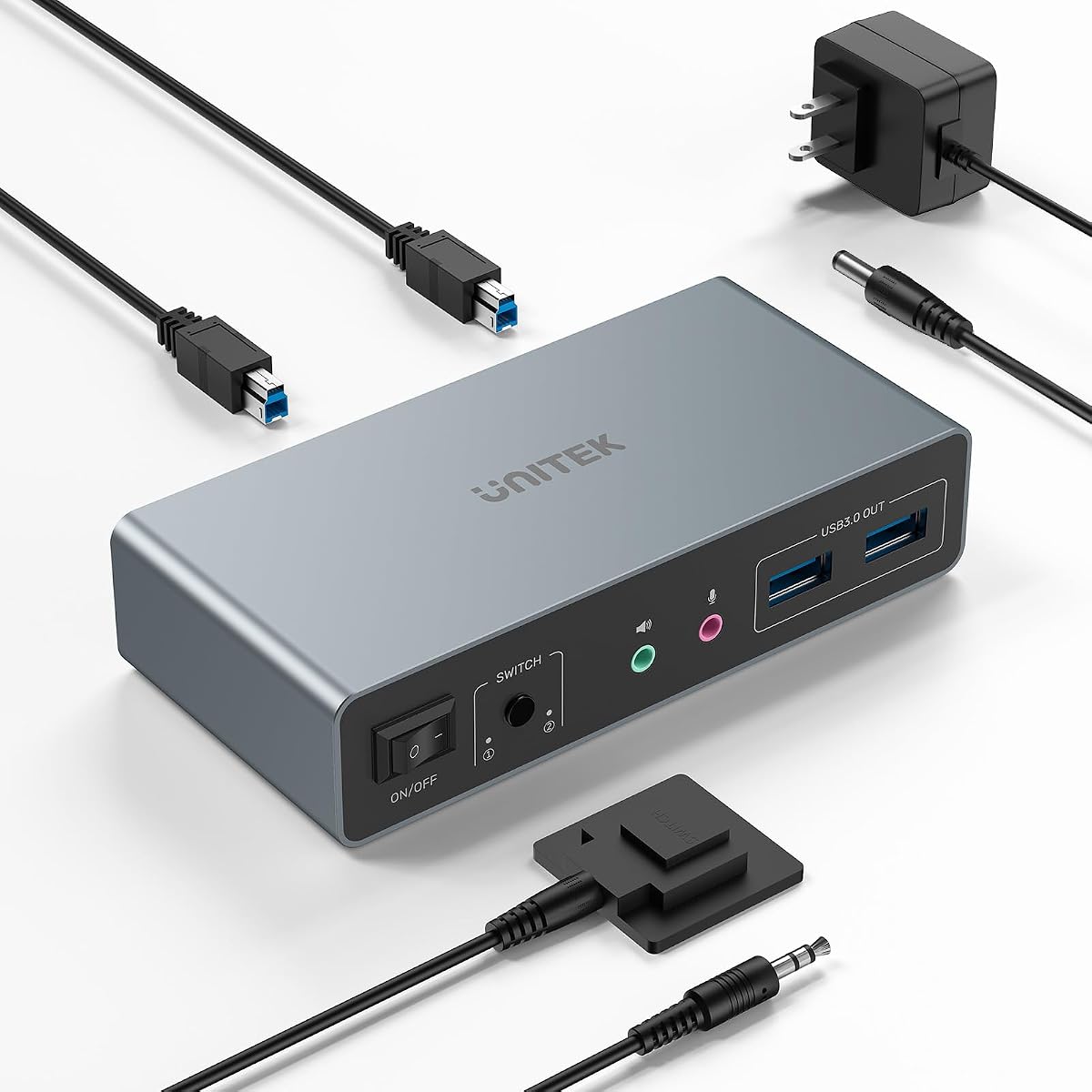
This Unitek model is the highest-rated product in the list with complete specifications, carrying a 4.5 rating. It is especially distinctive for combining DisplayPort and HDMI connectivity, offering 4K at 60Hz, four USB-A ports, microphone and headset support, a desktop controller, and a bundled 5V 2A power adapter.
We may earn a commission when you buy through this link, at no additional cost to you.
Mixed display interfaces make this a useful option for desktops that do not present the same outputs. It supports Windows, Linux, Mac, and other operating systems, while its stated compatibility extends beyond conventional desktop hosts. The 4K mode, 2K, 3D, 1080p, HDMI 2.0, HDCP, USB 2.0, USB 3.0, and HDR support create a flexible feature set.
There is a clear host limitation: the listing states that the switch is not compatible with laptops. It is designed for desktop hosts, and simultaneous HDMI and DisplayPort output requires the appropriate HDMI cable, DisplayPort cable, and USB A-to-B connection for each host. A USB A-to-B cable is included, but the necessary video cable assortment should be verified.
This is an excellent recommendation for a dual-desktop workstation with mixed graphics outputs and a need for audio peripherals. It is less appropriate for laptop users, and buyers should ensure their desktops can provide the required simultaneous HDMI and DisplayPort connections.
DisplayPort and HDMI support can simplify a system whose two monitors use different connector types. The computer-side cable requirements remain important, especially when both interfaces must operate simultaneously.
The listed microphone and headset support extends sharing beyond a keyboard, mouse, and printer. This makes the switch more relevant to calls, meetings, and entertainment stations as well as standard office tasks.
We may earn a commission when you buy through this link, at no additional cost to you.
This Unitek DisplayPort KVM offers a 4.4 rating and a distinctive architecture: each computer uses only one DisplayPort connection to drive two monitors. That can reduce cable clutter compared with a conventional dual-DisplayPort KVM, while the unit still supports 4K at 60Hz, 2K, and 1080p.
We may earn a commission when you buy through this link, at no additional cost to you.
Its host connectivity includes DisplayPort and one USB-C port, and the device provides one USB-C plus three USB-A 3.0 peripheral ports operating at up to 5Gbps. A front button and wired remote handle source changes, and an aluminum housing is designed to improve heat dissipation. The stated dimensions are 5.71 by 2.4 inches, making it relatively compact.
The constraints are substantial. The listing explicitly states that HDMI input is unsupported and that the product is not compatible with laptops. Its compatibility claims focus on Windows and Linux systems and identify PCs, Apple TV, and game consoles as possible connected devices, but the specific host requirements still need verification for each arrangement.
This model is best for a desktop environment seeking fewer host-side cables and a compact box. It is less suitable for users whose hardware relies on HDMI, who need broad laptop support, or who want the absolute maximum resolution and refresh combinations available among the higher-ranked alternatives.
Using one DisplayPort output per computer can reduce the number of cables running from each host. The trade-off is that the source must support the required multi-monitor configuration through that single connection.
The small aluminum enclosure can be easier to position than a larger conventional switch. Its metal body and stated heat-dissipation design also suit sustained workstation use.
We may earn a commission when you buy through this link, at no additional cost to you.
The Ouluoa is the strongest all-around pick in this comparison, combining the highest available rating of 4.7 with a practical feature set. It controls two computers through one keyboard, mouse, and pair of HDMI displays while supporting 4K at 60Hz, extended and mirror modes, four 5Gbps USB 3.0 ports, and smart EDID copying.
We may earn a commission when you buy through this link, at no additional cost to you.
The four-port USB hub is particularly useful for a stable desk setup. It can accommodate a keyboard, mouse, printer, webcam, flash drive, or other compatible peripherals without requiring four separate USB connections to each computer. External 12V power is designed to provide more reliable signal transmission and support for demanding storage devices.
The main limitation is that it tops out at a stated 4K at 60Hz, so it does not target 8K or extreme gaming refresh rates. The host and monitors must also support the desired dual-display configuration. EDID copying can help keep window positions from rearranging, but behavior may still vary by operating system and application.
For most dual-computer and dual-monitor users, this is the most balanced recommendation. It offers a generous USB hub, strong rating, useful EDID behavior, and a complete accessory package without requiring an exotic display interface. Choose it for general productivity and multitasking; choose a higher-bandwidth alternative for fast gaming or advanced high-resolution work.
Smart EDID copying is intended to help maintain display identity and window placement when changing sources. That makes the switch more useful for daily productivity than a basic model that repeatedly forces display reconfiguration.
Four USB 3.0 ports cover the most common shared peripherals while offering 5Gbps transfer rates. The included 12V supply is especially relevant for external hard drives and other equipment that may draw more current than a host port can reliably provide.
We may earn a commission when you buy through this link, at no additional cost to you.
This HDMI KVM delivers a broad set of display and connectivity features, including 8K at 60Hz, 4K at 120Hz, mirrored and extended modes, four 5Gbps USB 3.0 ports, and a wired remote. Its 4.1 rating is the lowest among the products with full data, but the underlying specification set is still relevant for high-performance workstations.
We may earn a commission when you buy through this link, at no additional cost to you.
The switch is described as driverless and ready for Windows, Mac, and Linux, with source changes available through a front button or the included remote. A bundled braided 8K HDMI cable adds convenience for a new installation. Its metal housing and use of a Genesys Logic GL3510 chipset distinguish it from simpler plastic designs in the group.
The USB hub also lists smart-charging support for BC 1.2, Apple, and Samsung protocols. That feature can be useful, but the exact charging behavior and which ports provide power should be confirmed with the current listing. As with the other two-output HDMI models, the computers need two suitable video outputs and support for the desired display mode.
This is a reasonable feature-rich alternative for buyers seeking 8K capability, four shared USB ports, and a sturdy enclosure. It ranks below the Ouluoa because of its lower rating and offers no clearly documented EDID feature, but it may suit users who value the included high-quality cable and high-resolution capability.
The stated 8K at 60Hz and 4K at 120Hz capabilities provide ample bandwidth for compatible displays. The bundled braided HDMI cable simplifies the first connection, though additional appropriate cables may still be needed.
The metal housing and dedicated chipset create a more robust-looking package than basic desktop switches. Four USB 3.0 ports support common peripherals and higher-speed storage workflows when the attached devices and host systems cooperate.
We may earn a commission when you buy through this link, at no additional cost to you.
The right KVM switch depends less on the number of ports printed on the box and more on how your computers, monitors, cables, and peripherals connect. Video bandwidth, host output topology, display mode, USB requirements, and switching method should be evaluated together before choosing.
Begin by identifying the actual outputs on both computers and the inputs on both monitors. HDMI-only designs are straightforward for dual-HDMI desktops, while DisplayPort models suit dual-DisplayPort systems. Mixed-interface products can provide flexibility, but they may require separate HDMI and DisplayPort connections from each host. USB-C display output also needs careful attention because a cable that supports charging or data may not carry the required video mode.
A specification such as 4K at 60Hz is useful only when the entire chain supports it. Check the graphics hardware, operating system settings, monitors, cables, adapters, and KVM switch together. Models advertising 8K, 4K at 120Hz, 4K at 144Hz, or higher refresh rates provide more headroom, but they are not automatically required for office productivity. Match the available bandwidth to the displays rather than choosing the largest number on the listing.
Extended mode gives each monitor separate content, making it the normal choice for multitasking. Mirrored or copy mode duplicates one image across both screens and is useful for presentations, demonstrations, and some shared-visibility situations. A proper two-monitor KVM should support both modes, but the host operating system, graphics driver, and applications also influence the final behavior.
Count the peripherals that must move between computers, not just the keyboard and mouse. Four USB 3.0 ports are useful when a printer, webcam, scanner, or storage device is also shared, while three may be enough for a leaner desk. USB 3.0 is rated at up to 5Gbps and remains backward compatible with slower devices, but actual performance depends on the source, peripheral, and the switch's internal controller.
A dedicated power adapter can make USB sharing more reliable, particularly when external hard drives, hubs, webcams, or other high-current devices are involved. Several models include a 12V supply, while others specify a 5V input and do not include the adapter. Check the package contents before assuming a suitable power source is available. Also verify whether host power alone is adequate for your intended peripherals.
Panel buttons and wired desktop remotes are the most common switching methods in this group. A remote is useful when the main unit sits behind a desk or beneath a monitor. EDID emulation or copying can help maintain resolution, display identity, and window placement as sources change. Although none of the detailed listings supports keyboard hotkey switching, that is unlikely to matter for buyers who prefer a physical control.
Most switches work across major operating systems, but host capabilities can still cause problems. A computer must provide the required number and type of video outputs, and it must support extended and mirrored modes where those are needed. Some products are explicitly limited to desktop hosts and are not compatible with laptops. Others assume native HDMI or DisplayPort connections rather than passive adapters.
Package contents can materially affect setup convenience. Some switches include USB host cables, a wired remote, and a power adapter; one also includes a braided 8K HDMI cable. The DisplayPort 144Hz model specifically does not include DP cables, and the Greathek 4K model does not include its 5V adapter. Make a checklist of every cable and accessory required by your existing equipment so there are no surprises after delivery.
Begin with both computers powered off or idle and disconnect any old direct video and USB connections. Connect the shared keyboard, mouse, and chosen peripherals to the KVM's USB device ports. Connect the KVM to a compatible power source if the model specifies external power, and then attach the correct video cables from each computer-side input to its matching monitor-side output. For mirrored and extended operation, connect both monitors even if the planned mode changes later.
After the wiring is checked, power on the monitors and one computer, then select that source with the front button or wired remote. Confirm the correct extended or mirrored arrangement in the operating system's display settings. Repeat the process for the second computer. If the image is missing, check that the host is connected to the correct pair of ports, that the KVM's DisplayPort A and DisplayPort B outputs lead to the same computer when required, and that every cable supports the intended resolution.
For routine care, keep the enclosure ventilated and place it where it will not be covered, pushed against a wall, or exposed to moisture. Avoid frequently unplugging USB storage devices while data is being transferred. When changing displays or host graphics hardware, check the new resolution and refresh rate against the KVM's specifications, and use the EDID or display settings to restore any window arrangement that the operating system changes.
Yes, but it must be a true two-output model rather than a basic one-computer KVM with a single video path. Both computers need the required video outputs, and the switch must support the desired extended or mirrored modes. The host, monitors, and all cables must also support the selected resolution and refresh rate.
They need two compatible video outputs in total for a native dual-monitor setup. An HDMI-focused switch generally expects two HDMI outputs from each computer, while a DisplayPort design expects two DisplayPort outputs. Mixed-interface models may use one HDMI and one DisplayPort output per host, provided the product and host support that arrangement.
Extended mode places separate content on the two monitors, allowing windows and applications to be arranged independently. Mirror mode duplicates the same image on both screens, which is useful for presentations or shared viewing. The graphics hardware and operating system must support the selected mode through the KVM.
It can share compatible USB storage devices, but external power is advisable because computer host ports provide limited current. Use the supplied or specified power adapter and avoid disconnecting the drive while a transfer is active. Data already written to the drive remains available, but applications should close it before moving to the other system.
It should not be assumed to work. One product explicitly warns that passive adapters and standard conversion cables may not carry video through the KVM, while an active adapter may be needed. Even with an active adapter, bandwidth, directionality, EDID behavior, and the target refresh rate can introduce limitations.
Some listings identify laptops as supported, but compatibility depends on the laptop having the necessary video outputs and the switch supporting those connections. The Unitek products in this list expressly state that they are not compatible with laptops. Other models may work only when a suitable active adapter and supported host configuration are used.
Windows can rearrange themselves when the operating system detects a different monitor configuration, driver, or EDID profile. A switch with EDID emulation or smart EDID copying may reduce that disruption, but behavior still depends on the graphics driver and application. Saving application positions or adjusting display settings after switching can provide additional consistency.
You need cables that support the resolution and refresh rate you intend to use, and sometimes the appropriate video standard or bandwidth. The 8K HDMI model recommends high-quality HDMI 2.1 cables, while the DisplayPort 144Hz model does not include DP cables. Check the current package contents and the specifications of every cable already in your setup.
The Ouluoa 4K HDMI KVM is the most balanced overall choice because it combines a 4.7 rating, four USB 3.0 ports, smart EDID copying, extended and mirror modes, and a complete accessory set. The DisplayPort 4K 144Hz model is the leading option for high-refresh gaming and performance displays, while the Greathek 4K HDMI model offers a focused and economical setup for conventional 4K productivity.
Before purchasing, prioritize the connection topology. A dual-HDMI desktop calls for an HDMI design, a dual-DisplayPort system favors the high-refresh DisplayPort option, and a mixed setup may benefit from a model supporting both interfaces. Then confirm resolution, refresh rate, USB power, EDID handling, laptop compatibility, and the exact cables included with the switch.
Finally, check the current product listing before ordering because configurations, included accessories, and supported specifications can change. Matching the switch to your existing displays and computer outputs is more dependable than selecting on headline bandwidth alone.