
UGREEN 2K@30Hz 1080P 60FPS Video Capture Card
4.5Editor score
4K30 HDMI input
1080p60 video output
USB-A and USB-C
Capture Cards for Dslr Camera compared for HDMI support, video quality, latency, compatibility, audio features, and ease of use.
A capture card lets a DSLR, mirrorless camera, camcorder, action camera, game console, or other HDMI source function as a webcam or recording source on a computer. The right model should combine dependable resolution, low latency, clean audio, broad software compatibility, and a connection style that suits your existing equipment.
We compared all ten products by examining their stated HDMI input and USB output capabilities, supported resolutions, frame rates, latency features, operating-system compatibility, audio options, and suitability for photography and video workflows. The list also considers practical distinctions such as HDMI loop-out, microphone input, driver-free setup, portability, and bundled accessories.
The reviews reveal where each capture card sits in the market: the Elgato Cam Link 4K serves as a strong all-around option, the AVerMedia CamStream 4K targets premium performance, and the UGREEN model offers a budget-oriented path to 1080p60 capture. Product specifications and availability can change, so readers should verify current details before ordering.
4.5Editor score
4.6Editor score

5.0Editor score
The table below compares all ten capture cards by their headline output, connection method, compatibility, and most useful extra features. Note that input resolution and output resolution are separate specifications, and a DSLR's clean HDMI output remains essential.


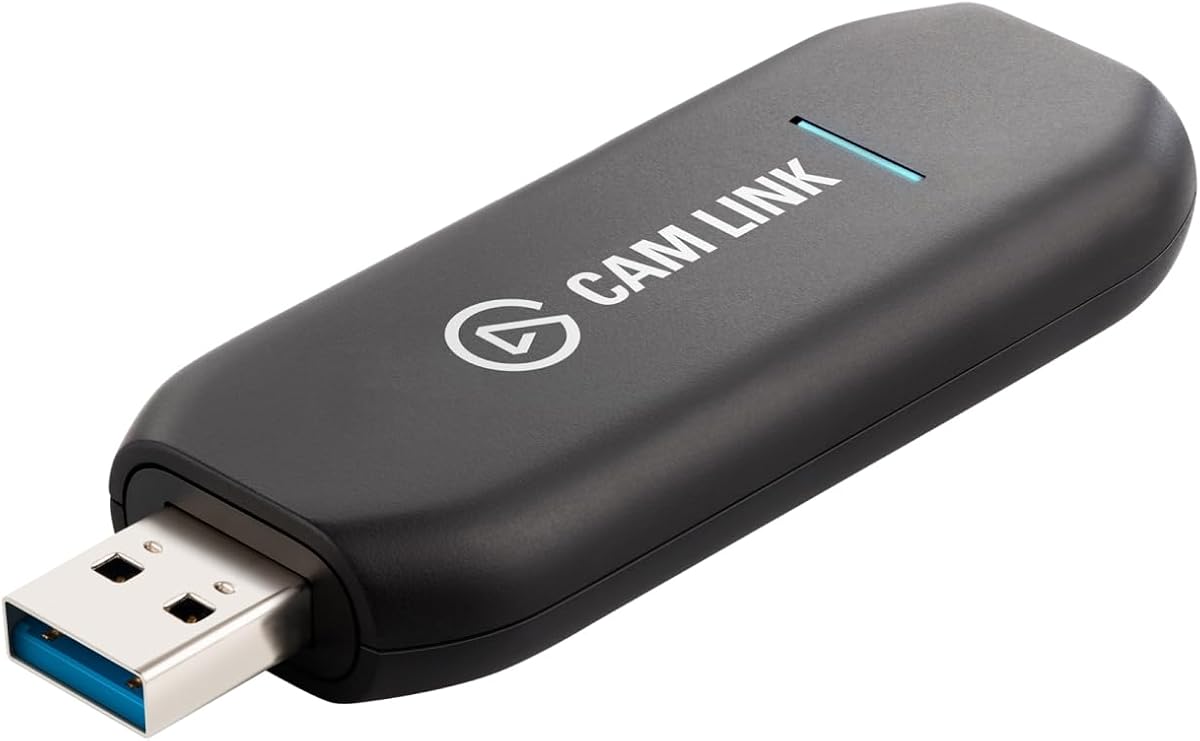
The Elgato Cam Link 4K is the strongest overall choice for anyone using a DSLR or mirrorless camera as a high-quality computer source. It carries a 4.6 rating and stands out for its claimed 4K60 recording and streaming capability, ultra-low latency, and broad source compatibility. Its familiar plug-and-use approach makes it suitable for creators, remote presenters, and photographers who want more control than a basic webcam provides.
We may earn a commission when you buy through this link, at no additional cost to you.
The biggest attraction is the combination of image quality and flexibility. According to the product information, it can stream and record at 1080p60 or 4K60 when the source device and the latest Cam Link model are compatible. It accepts not only DSLRs and mirrorless cameras but also camcorders, action cameras, and an iPhone, making the device useful across different production environments. The low-latency design also supports synchronized audio and video, which matters during live presentations and online meetings.
There are important limits to consider. A capture card cannot overcome a camera that lacks a suitable HDMI output, and high-resolution capture also depends on the computer, cable, source settings, and capture application. Some older cameras may require a clean HDMI configuration or a separate dummy battery, while the advertised resolution is not necessarily the resolution delivered by every source. As with any compact capture device, buyers should also confirm that their computer has an available USB port and supports the required data bandwidth.
The Cam Link 4K is recommended for streamers, educators, remote workers, and camera enthusiasts who value dependable quality and straightforward setup. Those who only need basic 1080p capture may find a more affordable model sufficient, but this is the most versatile and well-rounded option in the list for serious DSLR workflows.
Using a capable DSLR as a webcam can provide a cleaner and more consistent image than a typical built-in computer camera. The Cam Link 4K preserves that advantage while supporting live production, recording, and conferencing formats.
Its low-latency design is especially valuable for interviews, classes, and live broadcasts where noticeable delay would make the presentation feel unnatural. The device is built to keep audio and video synchronized.
We may earn a commission when you buy through this link, at no additional cost to you.
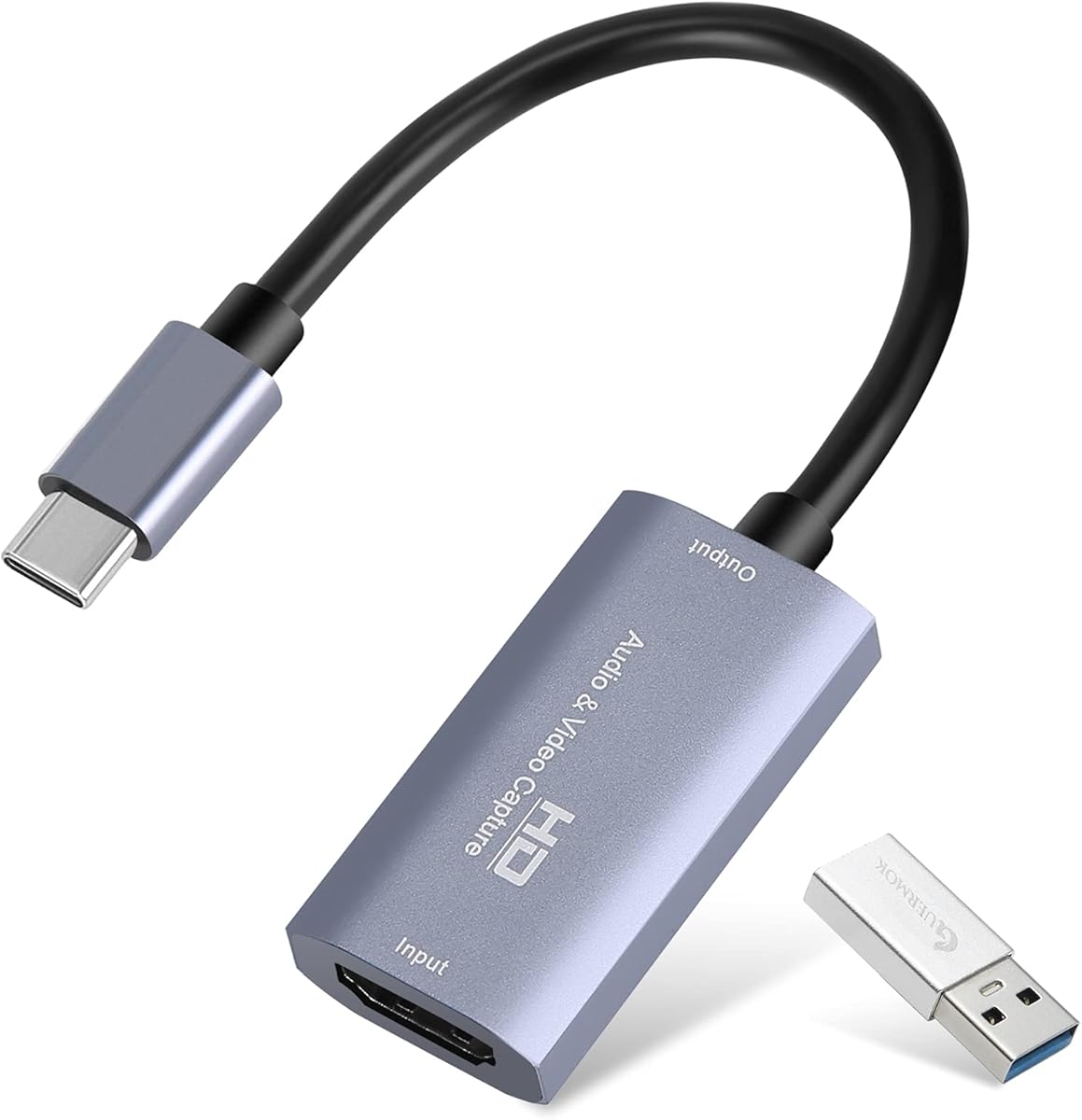
The Guermok Video Capture Card is a compact option for creators who need a portable bridge between an HDMI camera and a computer. It has a 4.4 rating and supports up to 4K30 input, 2K30 output, and 1080p60 output. Its small aluminum housing, plug-and-play design, and included USB adapters make it particularly convenient for mobile streaming kits, teaching sessions, and occasional recording away from a permanent studio.
We may earn a commission when you buy through this link, at no additional cost to you.
The device uses USB 3.0 high-speed transfer and can work with Type-C or standard USB connections. It supports common capture and viewing applications including OBS Studio, VLC, PotPlayer, and Zoom, along with platforms such as YouTube, Facebook, and Twitch. The stated source compatibility covers cameras, DSLRs, consoles, computers, set-top boxes, and mobile devices. Audio capture is also supported, although the necessary software and correct restart procedure must be followed after audio setup.
The most important limitation is that this is a capture device, not an HDMI converter for direct display. It converts the source into a webcam-style signal for software, rather than allowing a computer to mirror its screen to a television or monitor. Signal flow is one-way, and decoding introduces millisecond-level latency. Resolution support can also vary by color format, so the desired capture mode must be confirmed in the chosen application. Using a genuine USB 3.0 connection is advisable for the highest bandwidth.
This card is best for travelers, students, and occasional streamers who value portability and broad device support more than premium 4K60 output. It is also a practical backup unit for live demonstrations, conferences, and quick recordings where carrying a full studio setup would be inconvenient.
The small enclosure and integrated USB connection reduce the amount of equipment needed for a temporary streaming setup. It can be packed with a camera, laptop, and short HDMI cable for presentations or field recordings.
This design prioritizes webcam-style computer capture rather than direct screen casting. Buyers who need pass-through to a separate display should choose a model explicitly offering HDMI loop-out.
We may earn a commission when you buy through this link, at no additional cost to you.
The Rybozen HDMI Capture Card is a practical choice for users who need camera capture together with direct commentary. Its 4.3 rating is supported by a feature set that includes 1080p60 capture, HDMI loop-out, and a 3.5mm microphone input. It can serve as a general-purpose acquisition device for DSLRs, security cameras, PCs, game consoles, and other HDMI sources.
We may earn a commission when you buy through this link, at no additional cost to you.
The microphone jack is a meaningful differentiator for streamers and presenters who want to narrate while their camera feed is on screen. It accepts a 3.5mm TRS standard microphone headset rather than every type of microphone, so compatibility with a specific headset should be verified. The HDMI loop-out allows the source to remain visible on a separate display, which is useful for live production, gaming, or monitoring. The device is also identified automatically as a webcam, reducing configuration friction.
Resolution language requires careful interpretation. The card supports high-refresh HDMI input, including 4K30 and 4K60 input rates, but its USB output is listed at up to 2K30. A 1080p60 workflow is also identified for capture. These distinctions matter because a high-resolution source does not guarantee the same resolution and frame rate at the computer. The card does not require drivers or external power, making it simple to deploy on Windows and Mac systems.
The Rybozen is best for creators who value loop-out monitoring and commentary input alongside ordinary camera capture. It is less suitable for someone who requires 4K60 USB output or a microphone with a different connection, but it remains a versatile option for streaming, recording, and teaching.
The built-in microphone input gives users a direct route for commentary. It can simplify a one-camera streaming setup where narration is recorded alongside the camera image.
HDMI loop-out lets the camera or console feed remain available on another screen. That makes the card practical for extended sessions where the operator needs a local reference display.
We may earn a commission when you buy through this link, at no additional cost to you.
The Mwin Cam Link 4K combines a 4.6 rating with a broad set of capture and streaming capabilities. It supports input and output resolutions up to 4K, with capture listed at 4K30 and 1080p120, as well as 1440p60. Its stated video formats include RGB and other options, making it a flexible choice for photographers, streamers, and remote presenters who want more control than a standard webcam offers.
We may earn a commission when you buy through this link, at no additional cost to you.
The card connects through USB 3.0 and is designed for low-latency transfer without requiring a driver or external power. It works with cameras, consoles, PCs, and other HDMI devices, while supporting software such as OBS, VLC, AMCap, YouTube, Facebook, and Twitch. The product information specifically calls out easy connection to a DSLR, camcorder, or action camera, which makes the device relevant to the core needs of this guide.
One practical omission is the HDMI cable, which must be supplied separately. The device also uses several different frame-rate and color-format descriptions, so a creator should not assume that every high-resolution input will be delivered identically to the computer. Software codec support and the source camera's output configuration remain important. Users should test their preferred resolution, refresh rate, and recording format before a critical live event.
The Mwin is a strong choice for users who want flexible resolution options in a portable unit. It may appeal particularly to content creators moving between live production, conferencing, and gaming. For a buyer who requires a premium 4K60 RGB24 workflow, the AVerMedia model offers a more clearly specified target, while this card serves as a capable and well-rated generalist.
Support for 4K30, 1080p120, and 1440p60 gives creators room to select a suitable balance of detail, motion, and processing load. The correct choice depends on the camera output and capture software.
Driver-free operation and support for Windows and Mac make the card approachable for users who move between different computer systems. A quick capture-software check remains advisable before a live session.
We may earn a commission when you buy through this link, at no additional cost to you.
The UGREEN HDMI Capture Card is a well-rounded budget-oriented option, earning a 4.5 rating. It accepts 4K30 HDMI input and provides output at up to 2K30 or 1080p60. That combination is suitable for many DSLR streaming, conference, and recording tasks, particularly when a creator wants more detail than standard-definition webcam output without requiring 4K60 USB capture.
We may earn a commission when you buy through this link, at no additional cost to you.
Its main practical advantage is connection flexibility. The built-in cable terminates in USB-A, while the card also provides USB-C, making it suitable for modern laptops, desktops, tablets, and compatible phones. The device supports Windows, macOS, Linux, and stated mobile platforms, with compatibility for OBS Studio, XSplit, PotPlayer, and QuickTime Player. The aluminum housing helps with heat dissipation, and the specified conductor construction is intended to support stable signal transfer.
The unidirectional design is the central limitation. It carries HDMI into the computer but does not provide native loop-out to another display, so it is not intended for direct screen casting. iPad compatibility requires iPadOS 17 or later, and console sources may need protected content disabled. Users should also check whether the desired 2K mode is supported by both the HDMI source and capture device, because input and output limits are separate considerations.
The UGREEN card is a strong recommendation for students, remote workers, and new streamers who need 1080p60 without a complex installation. It offers easy driver-free setup, broad platform support, and a more useful connection choice than many basic adapters. Users requiring premium 4K60 delivery should look to higher-tier models.
The 1080p60 output is broadly useful for meetings, teaching, and live presentation work. It offers smoother motion than 30fps output while remaining easier to handle than demanding 4K60 acquisition.
USB-A and USB-C support reduces the chance that a new computer will be left with an unusable connection. Users should still verify the port's USB generation and connect directly when possible.
We may earn a commission when you buy through this link, at no additional cost to you.
The Cam Link 4K USB is positioned for more than standard live streaming. Its 4.5 rating and stated compatibility with microscopes, DSLRs, action cameras, and other HDMI devices make it particularly relevant to electronics repair, jewelry or coin inspection, teaching, and detailed DIY projects. It supports smooth 1080p60 capture and up to 2K50 output for workflows where close visual detail matters.
We may earn a commission when you buy through this link, at no additional cost to you.
The product uses a simple USB 3.0 connection and requires no drivers. It is stated to work with OBS, Zoom, and other streaming software, reducing the friction associated with installation. Because the camera is treated as a standard acquisition source, a user can move between a microscope, a DSLR, and an action camera without searching for a different capture application. That flexibility is valuable for educators and technicians who demonstrate several kinds of equipment.
The resolution ceiling is less ambitious than models explicitly designed for 4K60 USB output. At 2K50, the card should still provide detailed imagery for many close-up tasks, but users who need 4K60 capture for production or archival purposes will need a different device. Camera output settings, macro or microscope sharpness, lighting, and the chosen software's color format all influence the final image, so technical users should test the complete chain.
This model is an excellent fit for repair professionals, instructors, and hobbyists who want a dependable way to display and record a magnified or precision subject. It is less compelling for mainstream creators whose sole priority is the highest possible streaming resolution, but its specialized compatibility adds genuine value.
A 2K50 or 1080p60 workflow can make fine components easier for viewers to inspect during demonstrations. Good lighting and a stable camera remain just as important as the capture hardware.
Compatibility with microscopes, cameras, and action cameras lets technical users reuse the same compact device across different subjects. That reduces the number of specialized adapters needed in a teaching or repair kit.
We may earn a commission when you buy through this link, at no additional cost to you.
The VIXLW Cam Link 4K is a feature-rich capture card for creators who want high-frame-rate options. It carries a 4.2 rating and advertises 4K60 and 1080p120 output, along with detailed format support for MJPEG, NV12, YUY2, and XRGB. This makes it suitable for DSLR, camcorder, and action-camera users who need a camera-like image in OBS, Zoom, or another acquisition program.
We may earn a commission when you buy through this link, at no additional cost to you.
The device is driver-free, needs no external power, and is automatically recognized by the system. Its compatibility list includes Windows and macOS computers, microscopes, DSLRs, game consoles, laptops, DVD players, and other HDMI equipment. For live streaming, video calling, gaming, or online teaching, the ultra-low-latency design is intended to keep the operator's experience and the audience's view closely aligned.
The format information is important. The stated maximum of 3840 by 2160 at 60fps is associated with MJPEG, while NV12 and YUY2 are listed at 4K30, and XRGB is listed at 2560 by 1440 at 30fps. A creator should choose a mode that the computer, application, and destination platform can handle smoothly. High frame rates and dense formats can also demand more system resources than standard 1080p capture.
The VIXLW is best for users who value advanced format choice and high-frame-rate DSLR capture. Its rating is lower than those of several alternatives, but the listed capabilities are meaningful. Buyers should verify their intended codec with a short test recording before committing to a demanding live workflow.
The option to capture at 1080p120 can preserve smoother motion in fast-moving subjects. Whether that mode is useful depends on the camera's HDMI output and the computer's real-time processing capability.
Multiple supported formats give editors and streamers a way to balance image characteristics against CPU demand. Understanding those differences is more important than simply selecting the largest advertised resolution.
We may earn a commission when you buy through this link, at no additional cost to you.
The AVerMedia CamStream 4K BU113G2 is the premium selection in this guide, backed by a perfect 5.0 rating in the supplied data. Its headline specification is 4K60 capture with RGB24 color and zero-lag performance. These characteristics make it a strong fit for professional livestreaming, webinars, camera-based broadcasting, and high-end conference production using a DSLR or mirrorless camera.
We may earn a commission when you buy through this link, at no additional cost to you.
The product data emphasizes audio and video synchronization, low latency, and broad platform support. It is stated to work with OBS Studio, Streamlabs, Zoom, Twitch, YouTube Live, Windows, Mac, and compatible iPads. No drivers or extra power are required, allowing the camera to be treated as a straightforward video source. The package also includes a USB Type-C to Type-A cable and a cold and hot shoe adapter, helping users position a camera on a compatible support.
High-end output still depends on the rest of the chain. The DSLR must provide the intended clean HDMI signal, the computer and capture software must support the selected format, and the streaming destination must accept the chosen resolution and frame rate. RGB24 is uncompressed and can demand significant USB bandwidth and storage throughput, so users should consider whether their setup is ready for that workload. A clean HDMI setting and possibly a dummy battery may be necessary during a long session.
The CamStream 4K is the recommendation for creators whose production quality and smooth 4K60 output justify a premium-tier device. It is especially useful for live events, polished video calls, and broadcast-style content. Those who only need standard 1080p conferencing can get more than adequate results from less advanced options in this list.
RGB24 is designed to reproduce the source's color without the reduction associated with some compressed formats. It can improve the look of skin tones, product demonstrations, and studio-lit footage.
The included cold and hot shoe mount provides a convenient way to secure a compatible camera. This makes the card more useful for dedicated production rather than only temporary desktop streaming.
We may earn a commission when you buy through this link, at no additional cost to you.
The acer USB 3.0 HDMI Capture Card is a 4.4-rated option aimed at streamers and creators who need direct audio input plus local display monitoring. It accepts 4K HDMI input, outputs up to 1080p60, uses the YUY2 video format, and provides an HDMI loop-out. The built-in 3.5mm microphone connection allows commentary to be added without a separate desktop mixer.
We may earn a commission when you buy through this link, at no additional cost to you.
YUY2 is one of the card's main technical distinctions. The product information describes it as delivering richer colors than MJPEG, which may appeal to users who want a straightforward uncompressed format for recording or streaming. The card also works without extra drivers or external power. It supports applications including OBS, XSplit, YouTube, Facebook, Twitter, and VLC, along with sources such as Switch, PS5, PS4, Xbox, DSLRs, PCs, macOS devices, and Android equipment.
The output is limited to 1080p60 even though the input can accept 4K, so the device is primarily a streaming and recording solution rather than a 4K USB output card. The microphone jack fits most 3.5mm devices, but users with specialized headsets may need an adapter. Loop-out is convenient for monitoring, though its behavior and any associated delay should be checked with the chosen source. As always, protected console content may need to be disabled.
The acer card is best for gamers, teachers, and vloggers who want microphone input and loop-out at the same time. Its 1080p60 ceiling keeps the workflow accessible, while YUY2 provides a useful quality-focused format. It is less appropriate for a creator whose main requirement is 4K60 computer capture.
The dedicated 3.5mm input allows a compatible headset or microphone to be mixed directly into the production. This reduces desk clutter for livestreams, classes, and narrated recordings.
HDMI loop-out provides a reference for the camera or console feed on a nearby screen. It is especially helpful when the operator needs to see more than the small preview inside the computer application.
We may earn a commission when you buy through this link, at no additional cost to you.
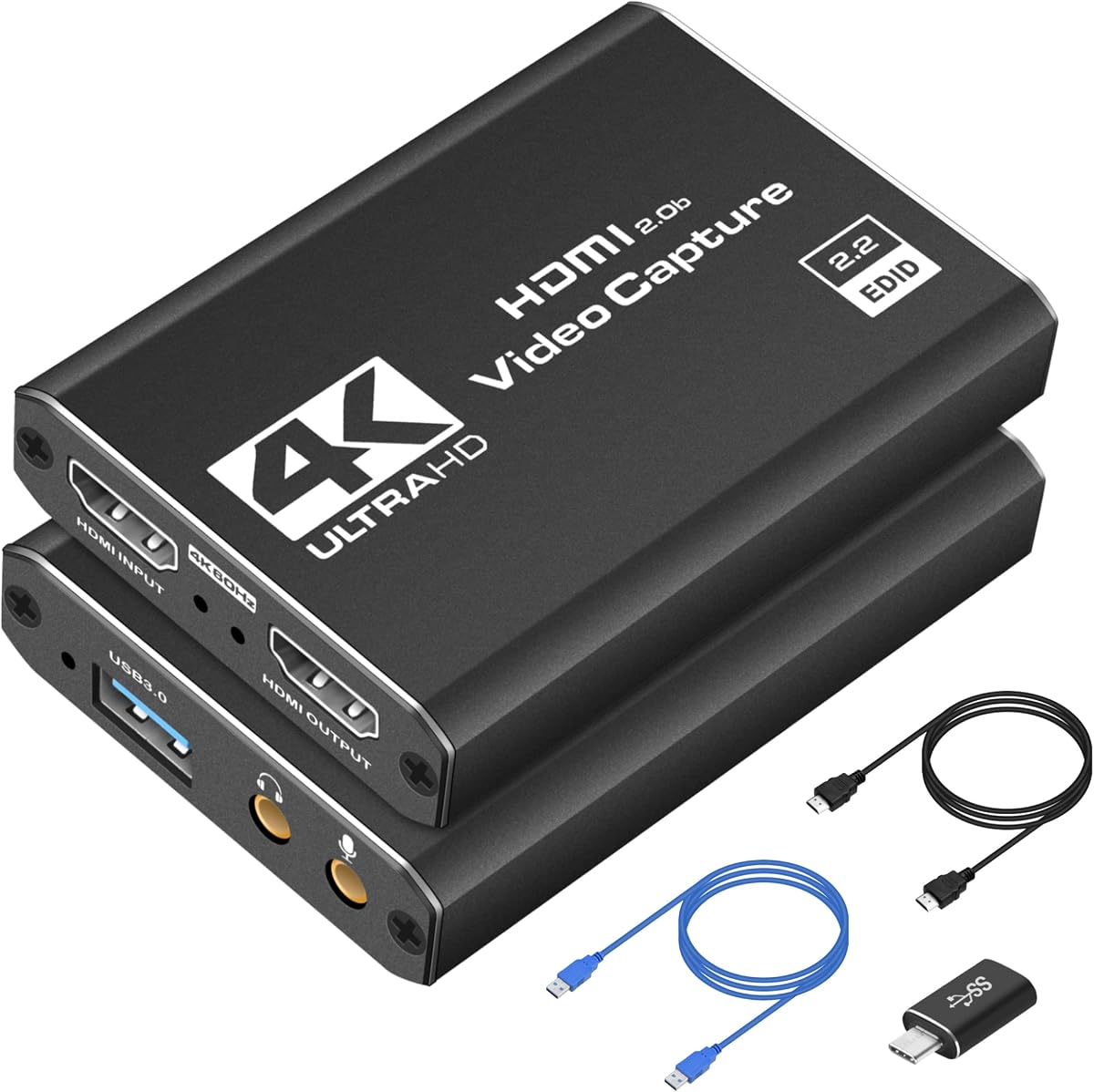
The 4K HDMI Streaming Capture Card is a straightforward entry point for users who want to connect a DSLR, console, or other HDMI source to a computer. It has a 4.4 rating and provides 1080p60 capture through USB 3.0. Its plug-and-play operation and support for OBS Studio, Streamlabs, and XSplit make it approachable for first-time streamers and creators building a simple recording setup.
We may earn a commission when you buy through this link, at no additional cost to you.
The stated 4K capability refers to HDMI input, while the delivered USB capture is presented as 1080p60. For many live broadcasts, classes, meetings, and gameplay streams, 1080p60 remains a practical and efficient target. The card supports a wide range of sources, including the Nintendo Switch, PS5, Xbox Series X, DSLRs, and PCs. Its compact enclosure also makes it easy to carry between a home studio and an event or LAN gathering.
Audio and commentary arrangements are less explicitly defined than on models with a dedicated 3.5mm microphone input. A user who needs to narrate over DSLR footage may therefore need another method for bringing microphone audio into the computer or software. The product description also mentions seamless pass-through, but buyers who depend on a separate local display should verify the exact current behavior and included connections before purchasing.
This capture card is a good fit for users who primarily need uncomplicated 1080p60 capture and do not need advanced codecs or premium mounting hardware. It is particularly useful for portable streaming, simple console recording, and straightforward DSLR webcam conversion. Creators seeking 4K60 output, loop-out, or integrated microphone support should consider one of the more specialized options.
Automatic driver-free operation lets a new user connect the camera and begin testing in compatible software. This reduces setup complexity for meetings, classes, and introductory live streams.
The lightweight enclosure suits creators who regularly change locations. Keeping the capture card, camera, short cable, and computer together in one bag makes temporary production simpler.
We may earn a commission when you buy through this link, at no additional cost to you.
The right capture card depends on your camera's HDMI output, the computer and software you use, the resolution you need, and whether you require loop-out, microphone input, or a specialized color format. Reviewing those requirements before comparing models prevents a purchase based only on an advertised resolution.
In short, confirm clean HDMI output before buying any capture card.
Choose the card based on its USB output resolution, not its input resolution alone.
Prioritize stable 60fps output for live video unless high-speed capture is a specific goal.
Use a genuine high-speed USB 3.0 connection and avoid bandwidth-limited hubs.
Select a format your computer can process reliably instead of chasing the largest uncompressed mode.
Choose loop-out when you need a separate monitor; it is unnecessary for basic webcam conversion.
Confirm camera HDMI audio and microphone connector support before finalizing a setup.
Verify the capture application and operating system before purchase, including required updates.
Begin by preparing the DSLR for live output. Update the camera's HDMI settings, select the highest appropriate clean output resolution, disable overlays or automatic screen shutdown when necessary, and confirm that autofocus or manual focus behaves as expected. Connect the camera's HDMI output to the capture card with a suitable cable, then attach the card to the computer's USB 3.0 port. Keep the camera powered throughout the session; some models may need a continuous-power solution during long recordings.
Open the intended capture application and add the capture card as a video source. Select the exact resolution and frame rate supported by both the camera and card, then enable the appropriate audio source. Preview the image for exposure, focus, color, cropping, and orientation before recording. If no sound appears, confirm that the application recognizes the card's HDMI audio, review the selected input device, and restart the software after changing audio settings when required. Make a short test recording to verify that the saved file is synchronized and stable.
For care, keep the capture card and connectors free from dust, moisture, and impact, and avoid leaving a connected camera and card exposed to unnecessary heat. Route cables so they cannot be pulled from the ports. When changing the camera resolution or frame rate, reselect the matching settings in the software rather than assuming automatic detection will always work. Store the unit in a small protective case and periodically inspect the USB and HDMI connections for looseness or damage.
Only if the camera has a suitable HDMI output and can provide a stable live image over that connection. Many modern DSLRs and mirrorless cameras support this, but features such as clean HDMI output, display overlays, autofocus, and audio vary by model. Check the camera manual and confirm the intended output resolution before buying a capture card.
No. Input and output resolutions are separate. A card may accept a 4K30 or 4K60 signal from the camera while delivering 1080p60 or 2K30 to the computer. The capture software, connection bandwidth, and selected color format can impose further limits, so review the complete signal path rather than only the input specification.
For most live streams, online classes, conferences, and webcam use, a stable 1080p60 feed is a practical choice. It provides smooth motion without the greater bandwidth and processing demands associated with 4K60. Creators need 4K mainly for high-resolution recording, detailed demonstrations, or delivery requirements that cannot be met at 1080p.
Capture sends the source signal to a computer for recording or streaming. Loop-out sends the same source to another HDMI display at the same time, allowing the operator to monitor it locally. A capture card without loop-out can still work perfectly for online meetings and software-based production, but it cannot serve as the direct bridge to a separate display.
No, loop-out is optional for a standard webcam-style workflow. It is valuable if you want to see the camera feed on a larger local monitor while also capturing it in software. If the only goal is sending a clean camera image to OBS, Zoom, or a conferencing application, prioritize resolution, latency, and compatibility instead.
Most of the listed products are described as compatible with OBS Studio. After installation, add the capture device as a video source, select the matching resolution and frame rate, and configure the audio source separately. The exact menu path and source behavior can vary by card and operating system, so a short test recording is the safest way to validate the setup.
The computer may not be receiving audio from the camera, the capture application may have selected the wrong input, or the application may need to be restarted after the audio configuration changes. Confirm that the camera supports HDMI audio and that the card is listed as an audio device. Test the camera's own recording output before changing multiple software settings at once.
A capture card transfers the camera's image but does not improve the lens, sensor, lighting, autofocus, or camera processing. It can preserve the quality of a properly configured camera feed and make that feed available to computer software. Image quality still depends on the source, output settings, cables, computer, and capture application.
The Elgato Cam Link 4K is the most balanced overall recommendation because it combines strong resolution claims, low latency, broad source support, and a simple Windows and macOS workflow. The UGREEN HDMI Capture Card stands out as a value-focused option with 1080p60 output, flexible USB connections, and broad compatibility, while the AVerMedia CamStream 4K is the premium selection for 4K60 RGB24 production.
Before choosing, verify that the DSLR provides a clean HDMI feed and decide which output format your computer and software can sustain. Loop-out, a microphone jack, a camera mount, portability, and high-refresh capture may matter more to some workflows than a headline 4K label. The Guermok, Mwin, Cam Link 4K USB, VIXLW, acer, and Rybozen options each provide particular advantages for mobile, technical, high-frame-rate, commentary, or monitoring setups.
Product specifications, software compatibility, and availability can change over time, so check the current listing and included accessories before ordering. Most importantly, test the complete camera-to-computer chain with the resolution and audio settings you intend to use. A short trial recording can prevent avoidable problems during a live stream, presentation, or client session.